
Three Ways to Engage Buyers in Sales Navigator
Sales Navigator gives you three distinct tools for reaching and nurturing prospects: Warm Referrals, InMail, and Smart Links. Each serves a different stage of the conversation. Use them together for the best results.
Prerequisites
- An active Sales Navigator seat
- InMail credits available (check your account settings)
- Content ready to share if using Smart Links (PDFs, case studies, website links)
Method 1: Warm Referrals
A mutual connection asking on your behalf converts far better than a cold message. Sales Navigator makes it easy to find and activate those introductions.
How to request a warm referral:
- Open the Lead Page of your target prospect.
- Scroll to the Get Introduced section.
- Click Message next to a shared connection.
- Write a short, specific intro request — explain what you do, why it's relevant to their colleague, and what you're asking them to forward.
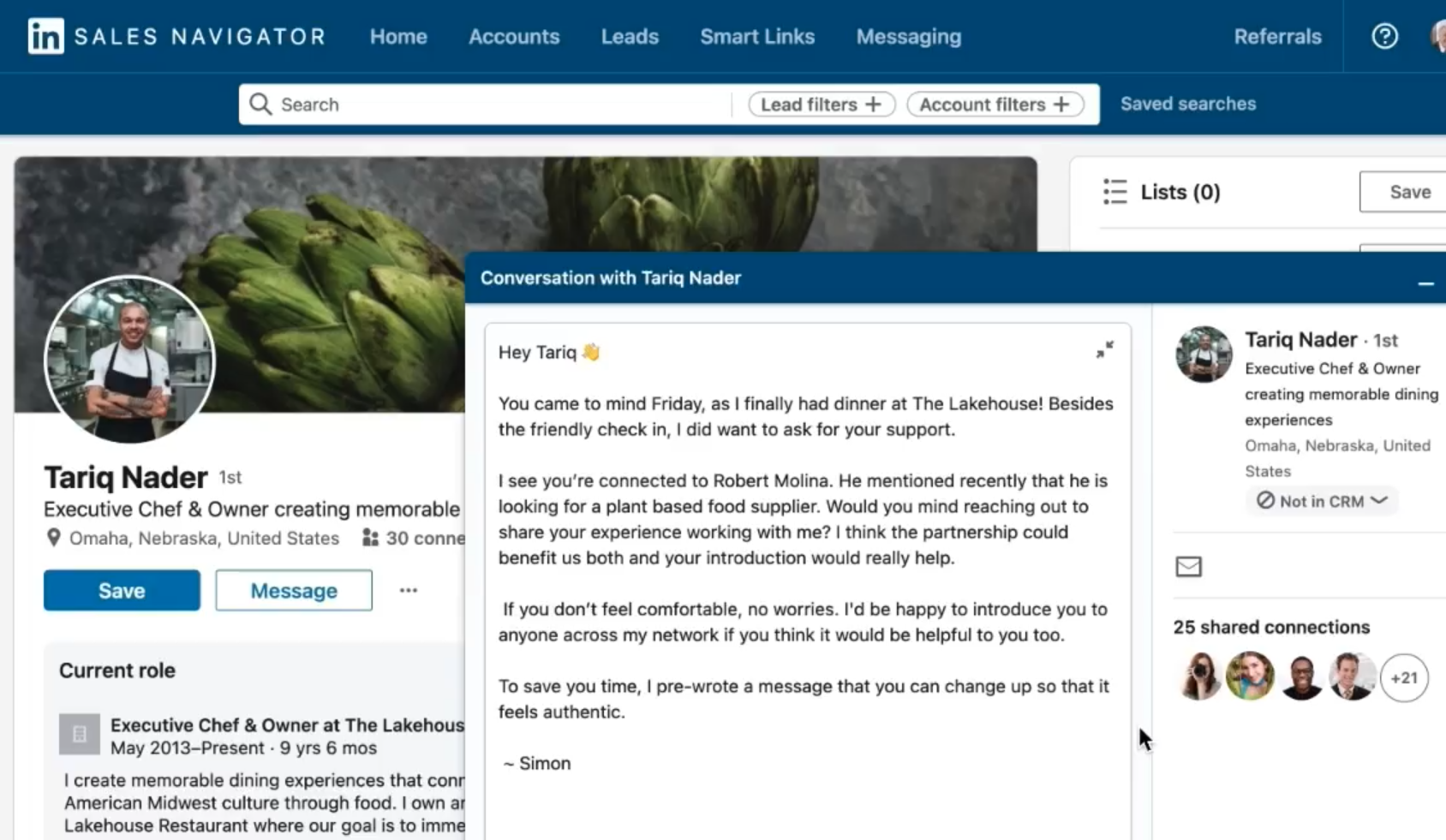
💡 Tip: Make it easy for your contact to forward. Write the message as if they're sending it — not as if you're asking a favor.
Method 2: InMail
When there's no mutual connection, InMail lets you reach anyone on LinkedIn directly — no email address needed.
Best practices for InMail that gets replies:
| Element | What to Do |
|---|---|
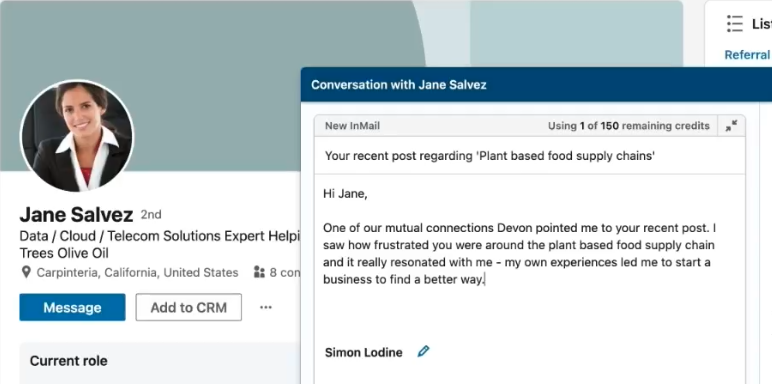
| Subject line | Reference something specific to them — a recent post, their company, their role |
| Opening | Lead with a relevant observation, not a pitch |
| Body | One clear value statement. Keep it under 150 words |
| CTA | One specific ask — a 15-minute call, a question, a resource |
⚠️ Warning: Generic InMail gets ignored. If your message could be sent to 100 people unchanged, rewrite it.
Use InMail insights in Sales Navigator to track your response rates and open rates. If a subject line or format is underperforming, test a different approach.
Method 3: Smart Links
Smart Links let you share content — case studies, decks, whitepapers — and see exactly who engaged with it and for how long.
How to create and share a Smart Link:
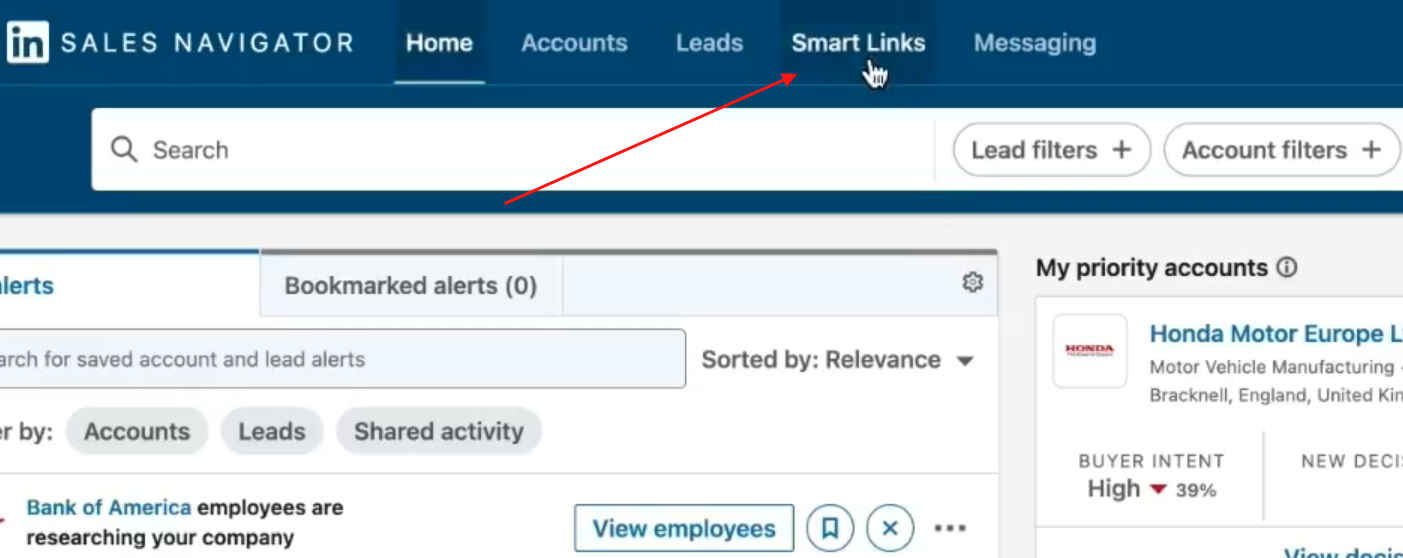
- Click Smart Links in the top toolbar of Sales Navigator.
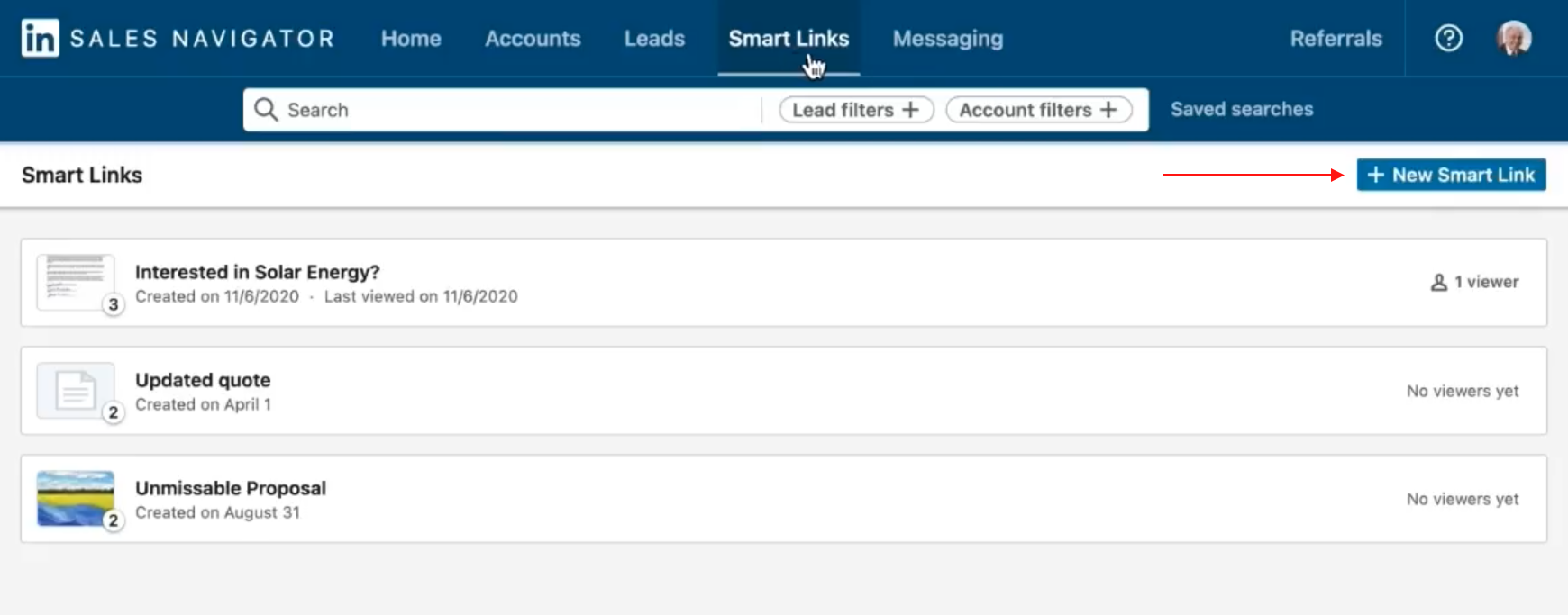
- Upload your content (PDF, URL, or file) and give the link a clear title.
- Choose whether recipients can download or only view the content.
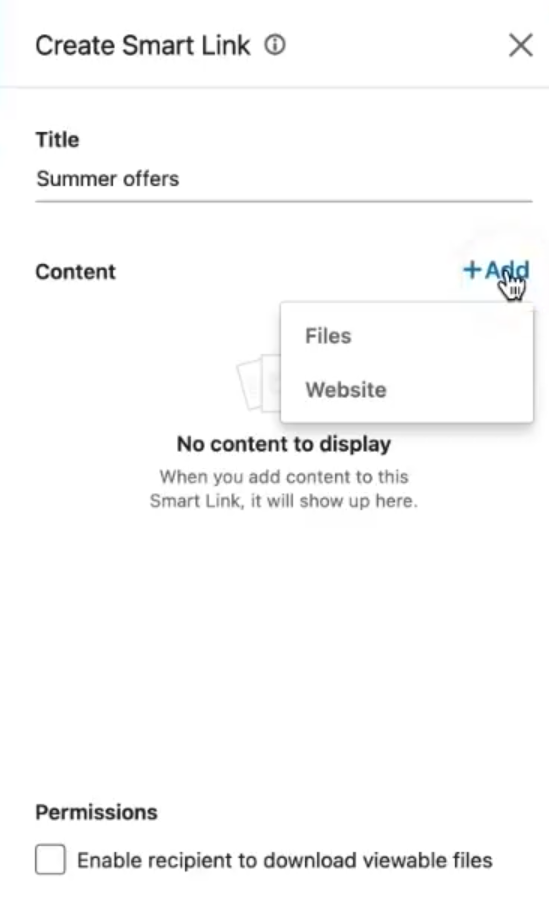
- Share the link via InMail, direct message, or email.
- Check engagement analytics to see who viewed it, which pages they spent time on, and how long they stayed.
What Smart Link analytics show you:
- View time per page — which sections held attention
- Engagement patterns — who spent the most time and is most likely to convert
👉 Note: A lead who spent 4 minutes on your pricing page is a very different follow-up conversation than one who bounced after 10 seconds.
What's Next
- [Understanding Lead Pages] — Research a prospect's background and activity before crafting your outreach.
- [Pinpoint the Right Buyers Using Lead Behavior] — Find leads who are already showing buying signals before you send a single message.