
Sales Navigator is LinkedIn's premium search tool for building precise prospect lists. SalesMind AI connects directly to it — paste your search URL and your leads are imported into your campaign, ready for outreach.
Prerequisites
- An active LinkedIn Sales Navigator subscription
- An active SalesMind AI campaign in progress
- Use Chrome (not Safari) when copying long search URLs
Steps
1. Build your search in Sales Navigator
Open Sales Navigator and create a new search. Use filters to narrow your audience:
- Job title — CEO, Founder, VP Sales, etc.
- Seniority level — include or exclude specific levels
- Company size — target the right business tier
- Activity filters (highly recommended):
- Posted on LinkedIn in the last 30 days
- Changed jobs in the last 90 days
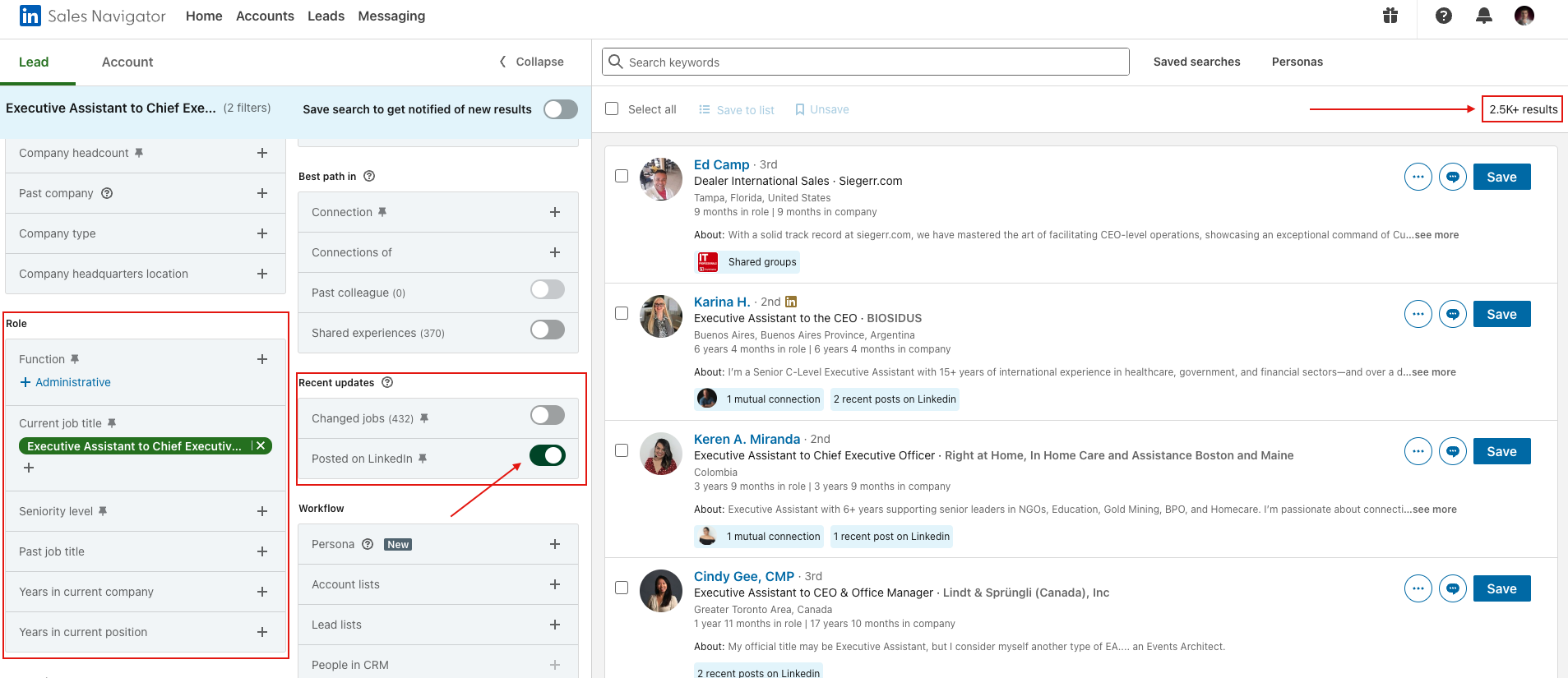
💡 Tip: Activity filters dramatically improve reply rates. A search might return 69,000 results, but only 2,500 of those people are active on LinkedIn. Focus on the active ones.
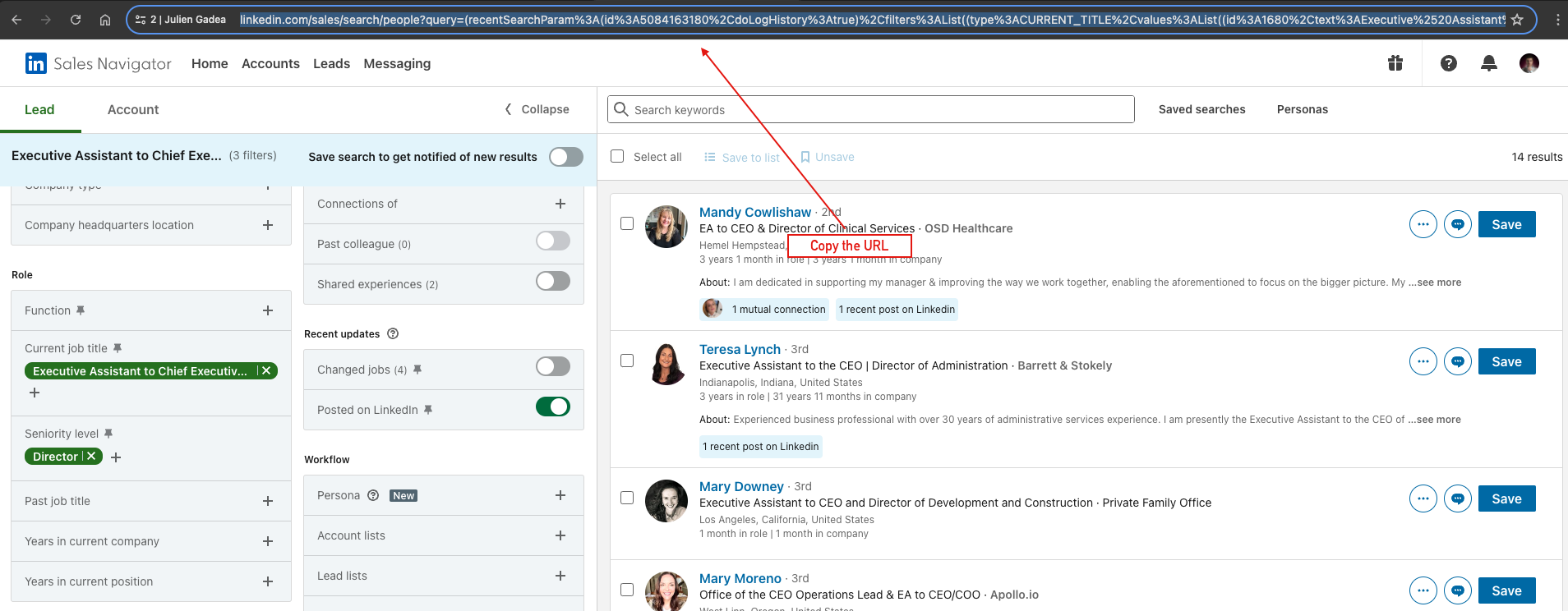
2. Copy the search URL
Once your filters are set, copy the full URL from your browser's address bar.
⚠️ Warning: Safari may truncate very long URLs. Use Chrome to copy Sales Navigator search URLs reliably.
3. Paste the URL into SalesMind AI
In your campaign's Import Leads step, select Sales Navigator. Paste the URL into the input field.
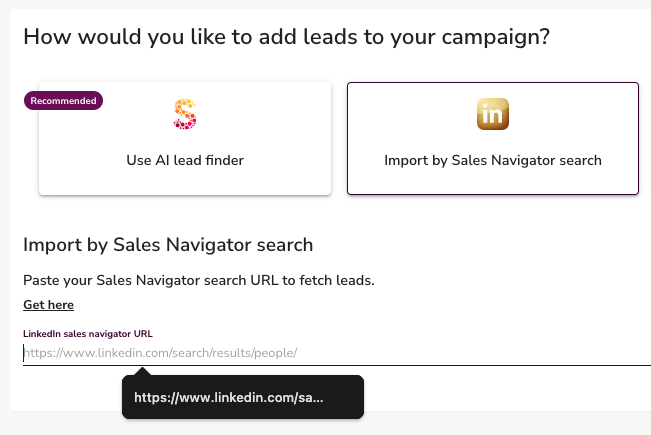
SalesMind AI imports up to 1,500 leads per search. If your search returns more than 1,500 results, narrow it with additional filters and import the segments separately.
👉 Note: If your search has 5,000 results, split it into 4 narrower searches (by region, industry, or title) and import each one.
Saved searches and team sharing
Sales Navigator lets you save searches for quick access. There's one important limitation:
- Saved search links are short URLs that only work for the account that created them.
- If a teammate tries to use your saved search link, it won't work — even if you're in the same SalesMind AI Agent.
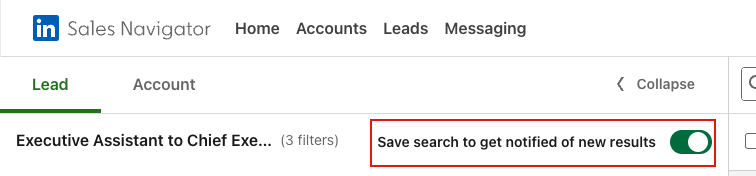
👉 Note: To share a search with a teammate, share the full search URL (from the browser address bar), not the saved search shortlink.
Review and confirm
After pasting the URL, SalesMind AI retrieves the results and imports them into your campaign. Check the imported count to confirm it looks right.
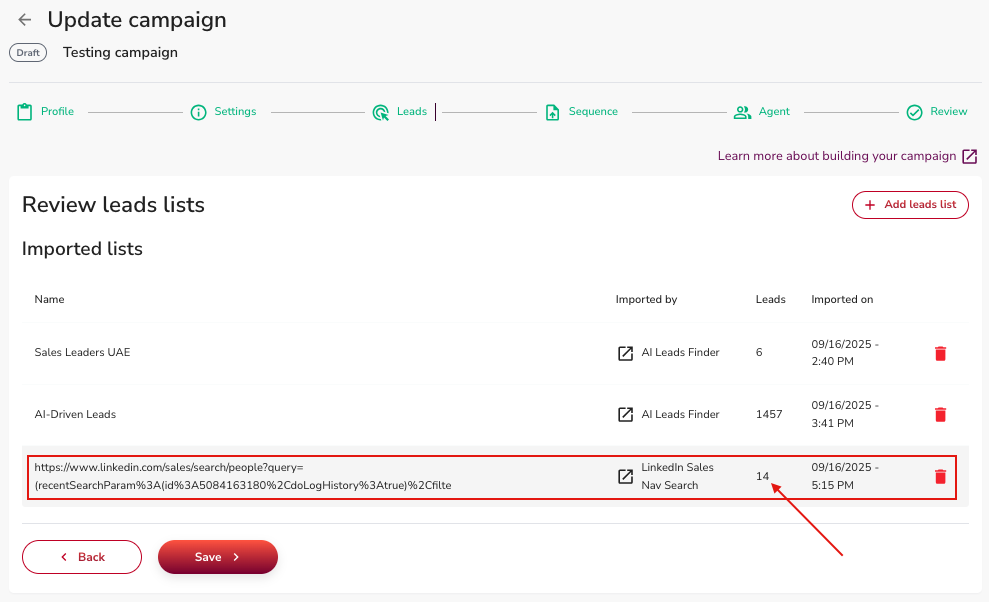
Repeat the process with additional searches if you want to build a larger list.
Quick reference
| Situation | What to do |
|---|---|
| Search has 1,500+ results | Narrow with filters, import in segments |
| Using Safari | Switch to Chrome before copying the URL |
| Sharing with a teammate | Share the full browser URL, not the saved search link |
| Want higher reply rates | Add activity filters (posted recently, changed jobs) |
What's Next
- Add more leads using other import methods (Event Search, Profile Followers, Google Sheets)
- Set up your message sequence with personalization based on your targeting
- Review your campaign settings and launch