
Overview
SalesMind AI gives agencies three ways to connect client LinkedIn accounts. Each option balances a different mix of client involvement, agency control, and branding. Pick the one that fits your workflow.
👉 Note: All three options require a LinkedIn account to be connected before campaigns can run. The difference is who does the connecting and how.
Option 1: Client-Assisted Connection
The fastest way to get a client live. The client installs the SalesMind AI Chrome extension themselves and connects their own LinkedIn account.
Prerequisites: The client needs access to their LinkedIn account and a Chrome browser.
Steps
- Create or select an Agent in SalesMind AI for this client.


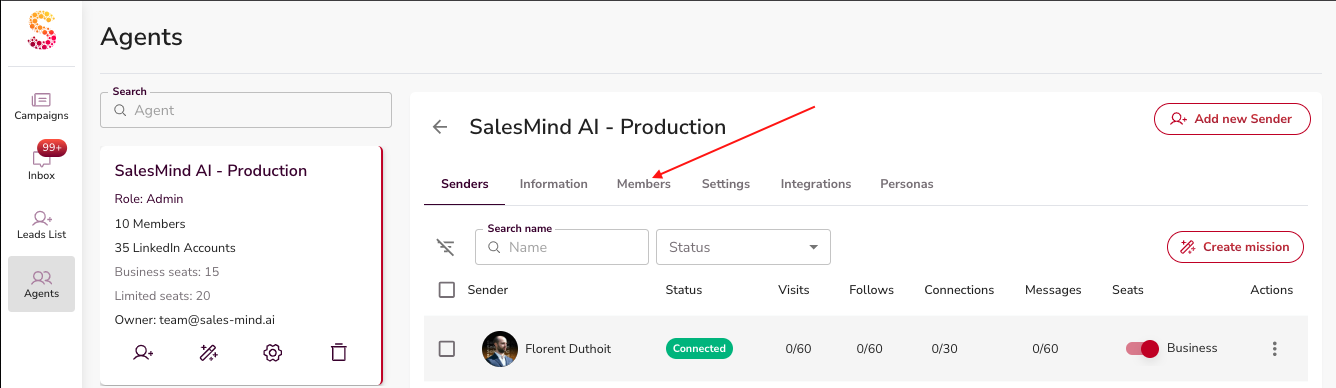
- Invite the client as a Member of the Agent:
- Go to your Agent and open the Members tab.
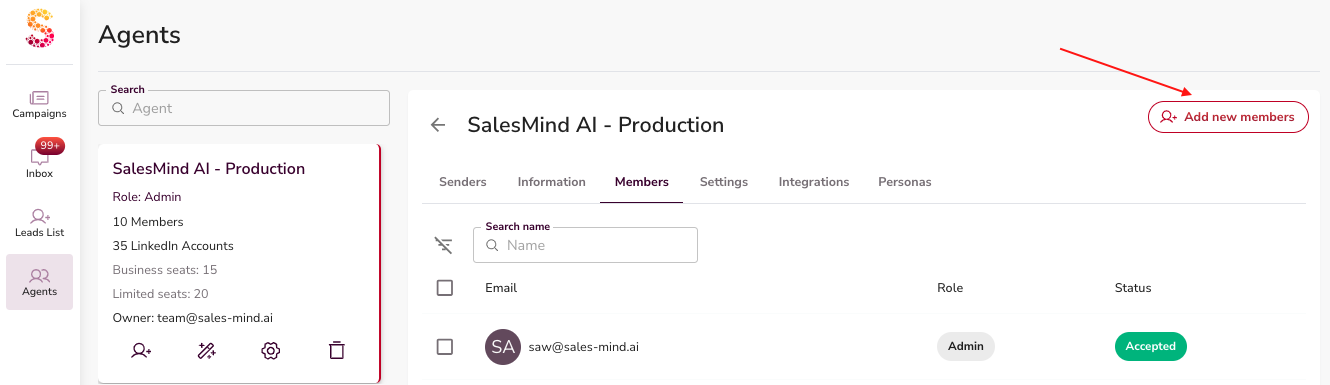
- Click Add Member.
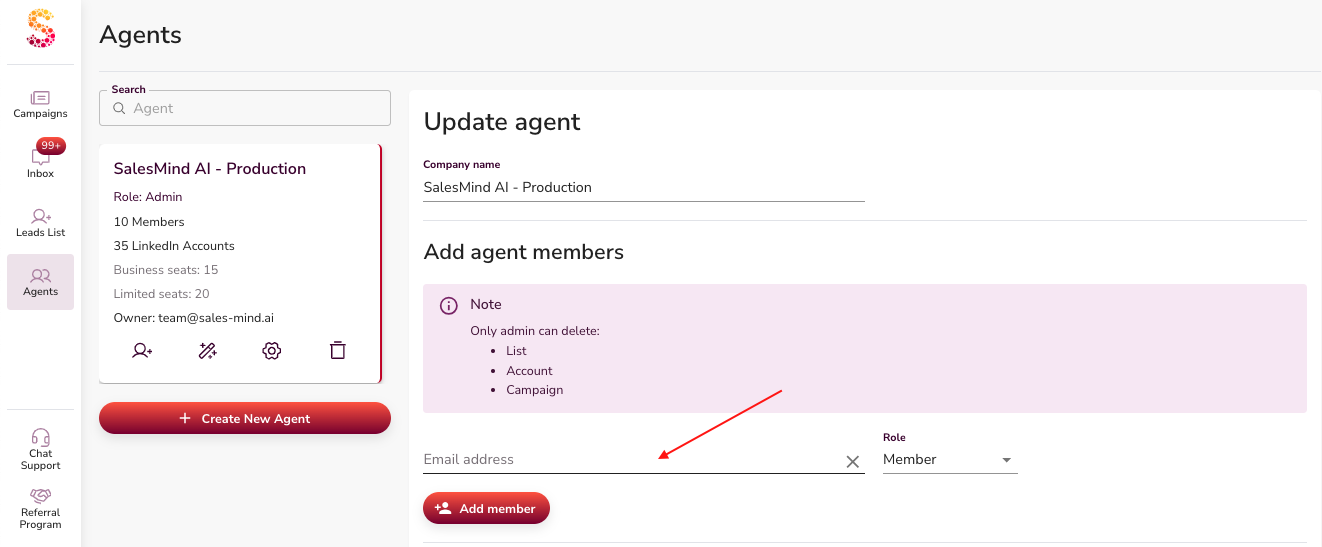
- Enter the client's email address.
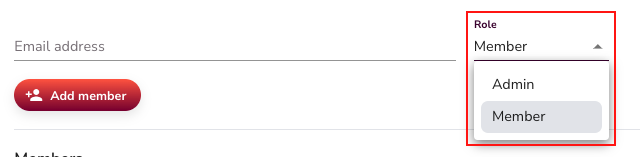
- Choose their role: Admin (can delete lists, accounts, and campaigns) or Member (standard permissions, no delete).
- Click Add Member to confirm. They'll receive an email invitation.

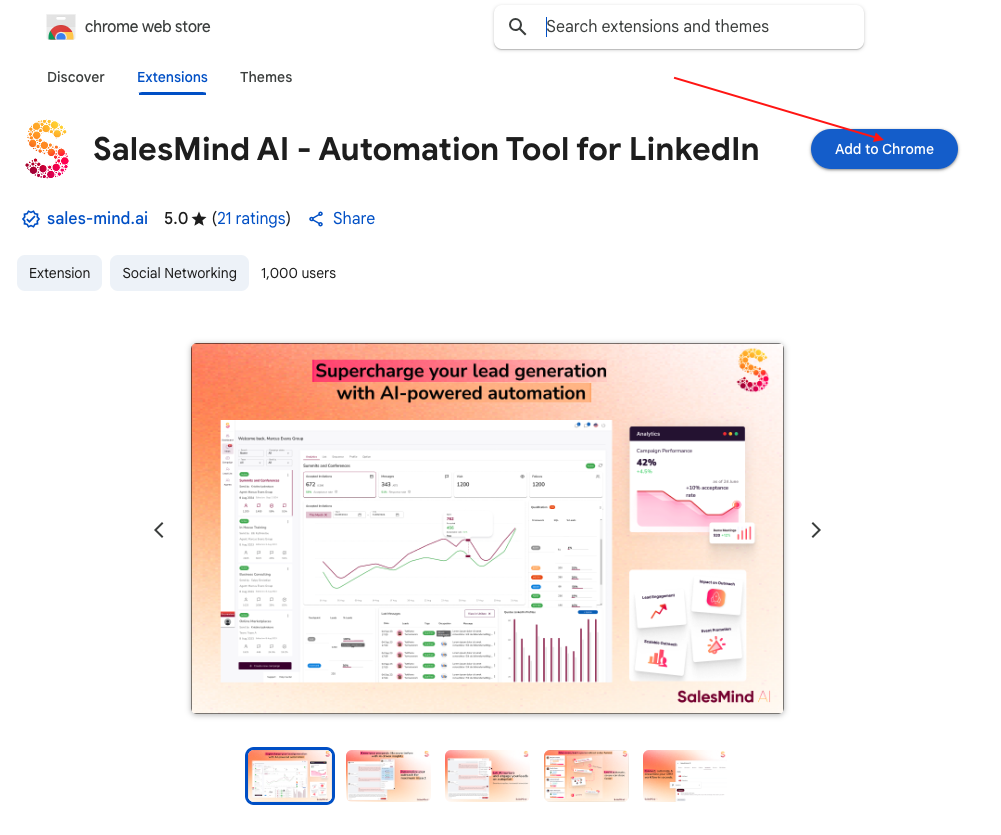
- Ask the client to log in to LinkedIn on Chrome, then install the SalesMind AI Chrome extension. See the "How to Install the SalesMind AI Chrome Extension" article for details.
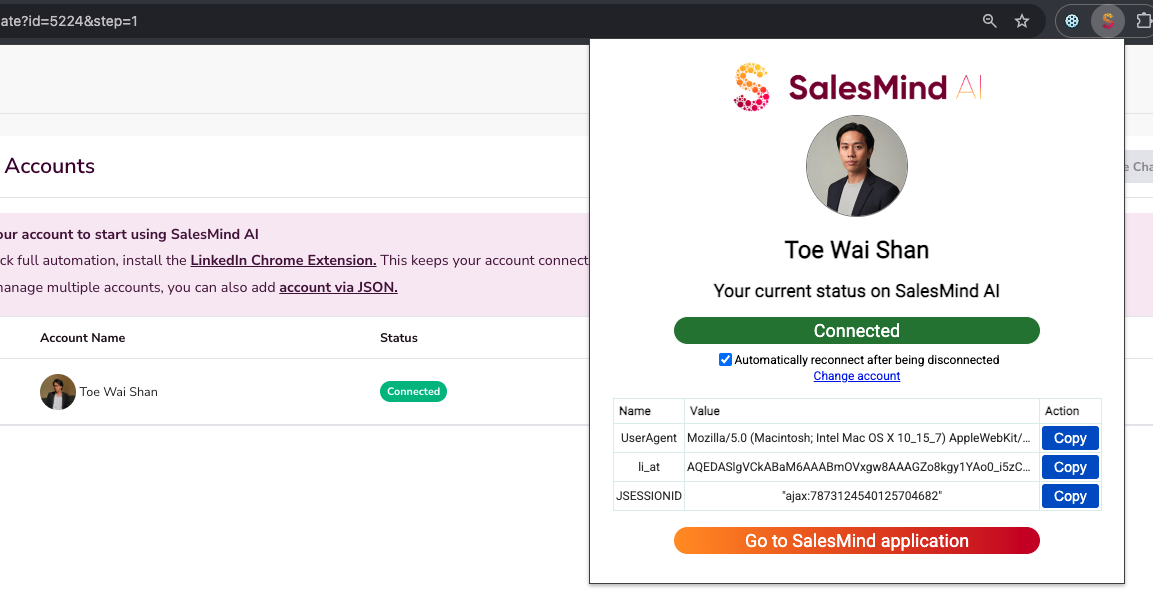
- The client opens the extension and logs in. SalesMind AI retrieves their LinkedIn session cookie (including Sales Navigator if available), which lets the platform act on their behalf.
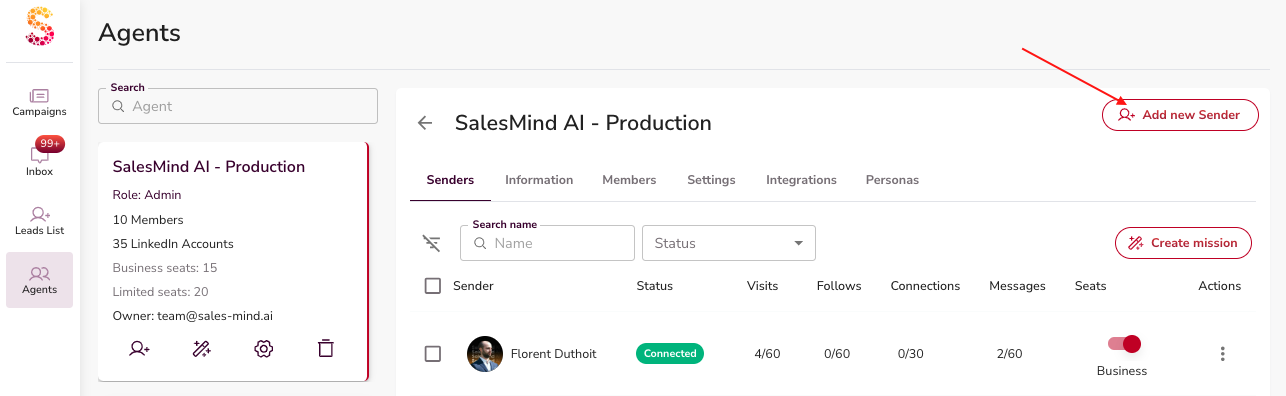
- The client adds their LinkedIn account as a new sender in the Agent:
- Go to the Agents tab.
- Click Add new sender.
- Click Connect.


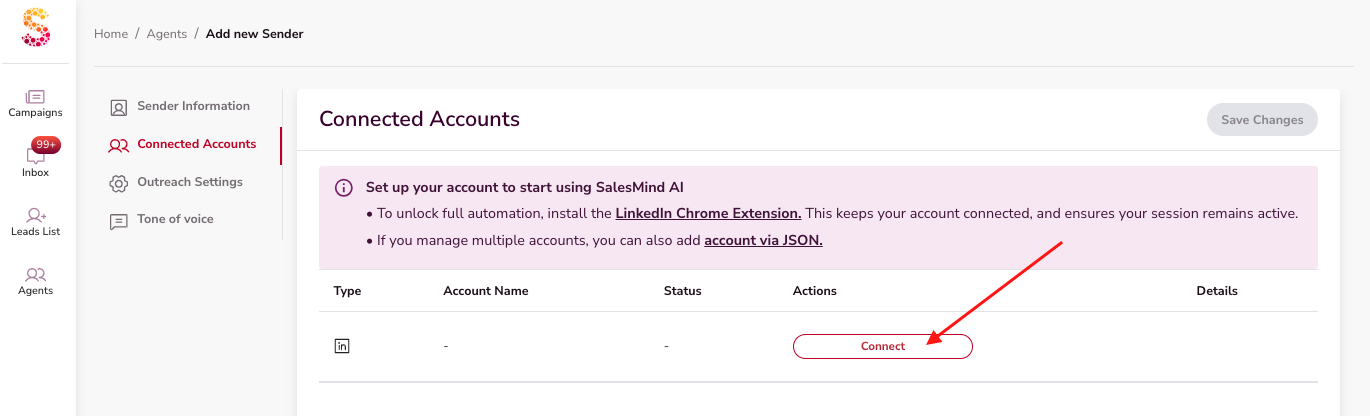
Expected result: Connection complete. The whole process takes under 10 minutes.
💡 Tip: Because the client has platform access, they can re-authenticate themselves if the session expires. Less work for you.
Best for: Clients who want visibility into their campaigns and are happy to be involved in setup.
Option 2: Brandless Connection (Agency-Only)
The client never touches SalesMind AI. They install a neutral Chrome extension, copy a JSON snippet, and send it to you. You paste it in and the account is connected.
Steps
- Create a new Agent in SalesMind AI for this client.


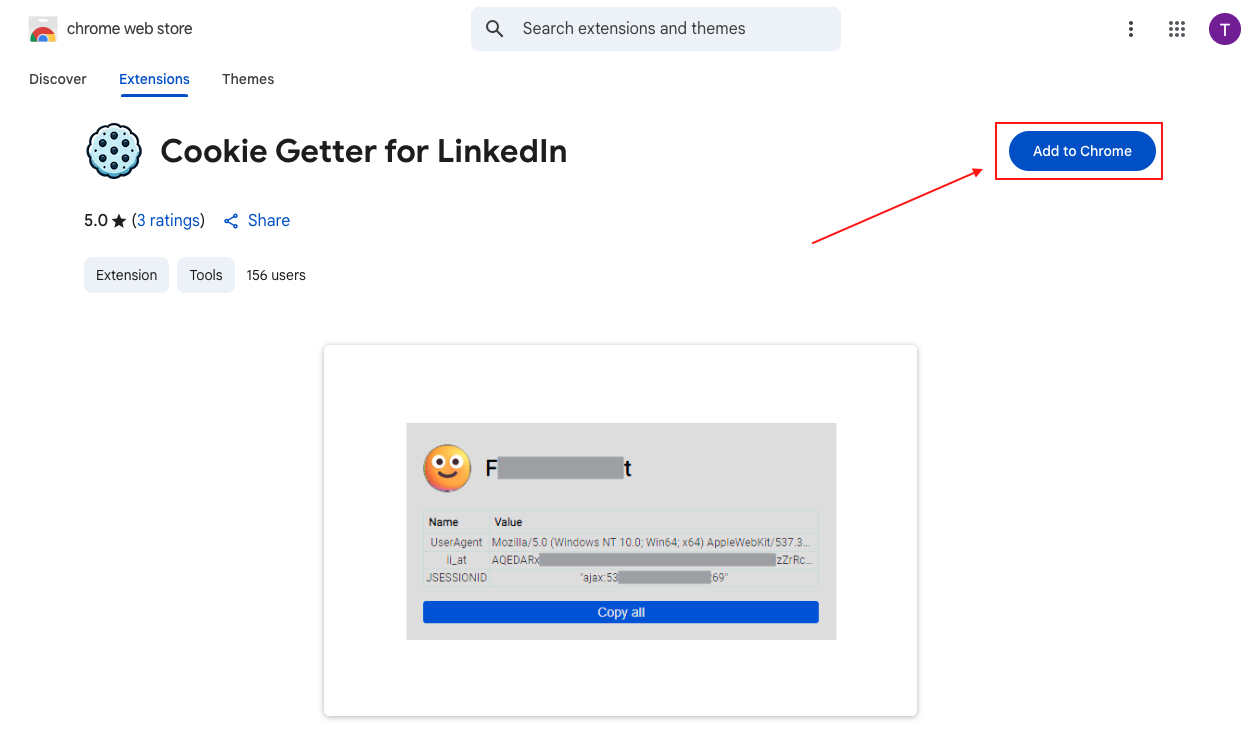
- Ask the client to install the brandless Chrome extension. It has no SalesMind AI branding.
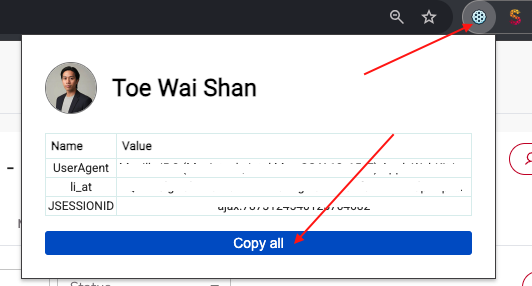
- The client opens the extension and copies the integration JSON data, then sends it to you.
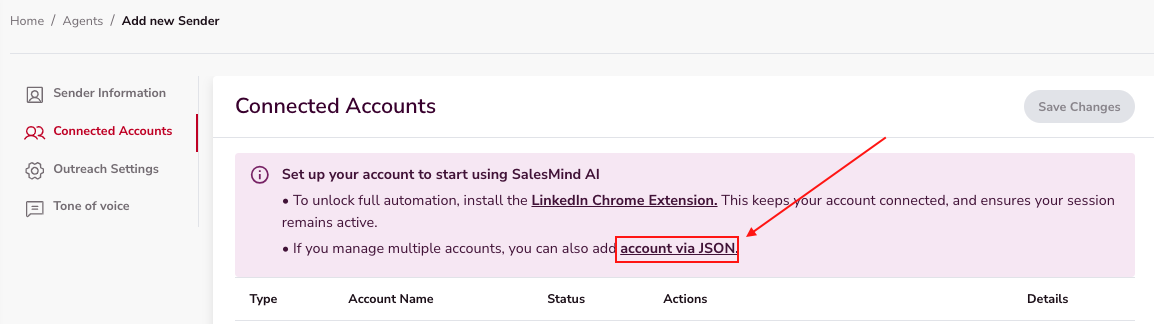
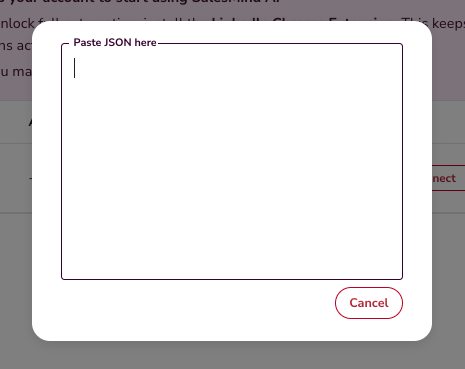
- In SalesMind AI, go to Add New Sender > Via JSON and paste the data.
Optional: Connect via Proxy
If you want to route activity through a consistent IP address for account security, you can add a proxy during sender setup:
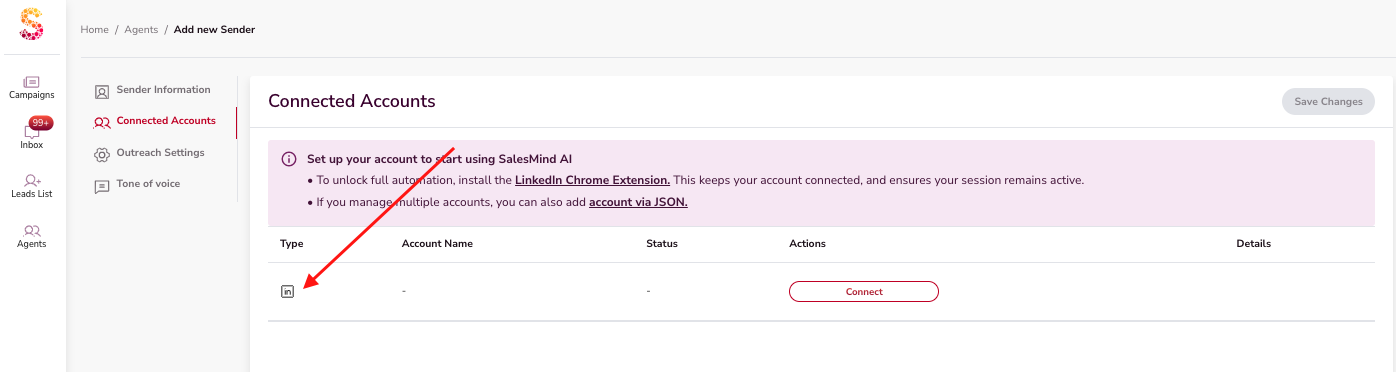
- Go to the Agents tab and click Add new sender.
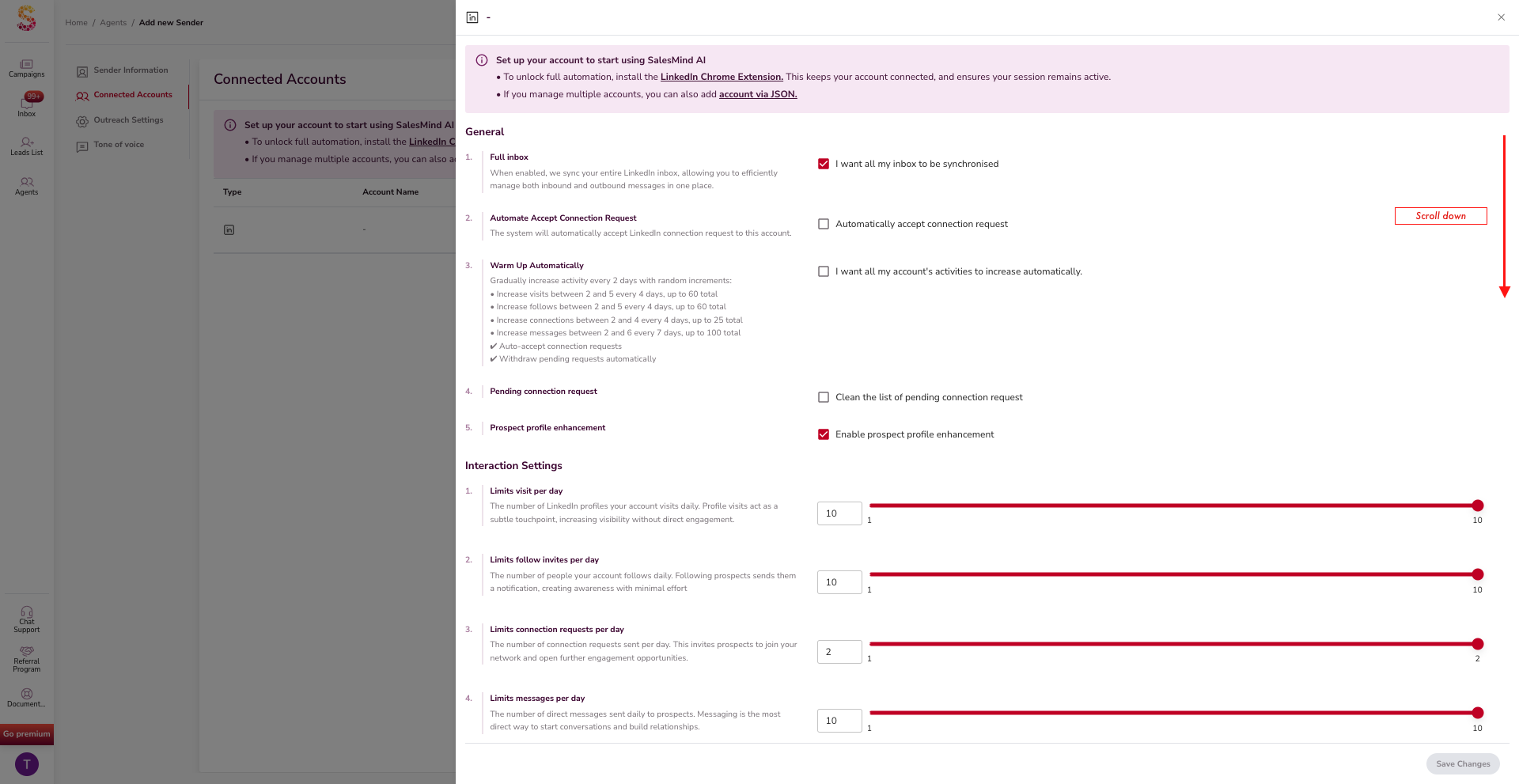
- Click the platform icon.
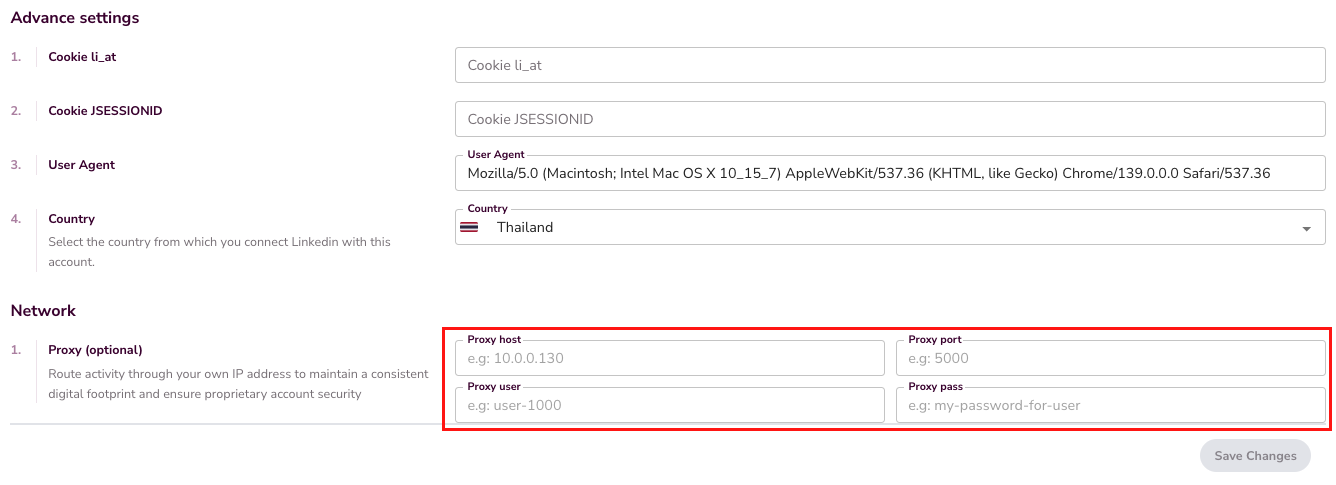
- Fill in the required fields, then scroll to the Network section.
- Enter your Proxy Host, Proxy Port, Proxy User, and Proxy Password.
⚠️ Warning: If the client's LinkedIn session expires, they'll need to send you a fresh JSON. Plan for periodic re-authentication.
Best for: Agencies running campaigns independently, where the client doesn't need (or want) platform access.
Option 3: White-Label Setup
Your agency offers SalesMind AI under your own brand. The underlying connection method is the same as Options 1 or 2, but the client sees your branding throughout.
Steps
- Decide whether the client will have direct access or not.
- With client access: Invite them to your white-labeled platform. They follow the same steps as Option 1.
- Without client access: Use the brandless extension method from Option 2, under your agency's branding.
💡 Tip: White-label is available as a separate plan. Contact the SalesMind AI team to get set up.
Best for: Agencies building a branded LinkedIn automation service for their clients.
Quick Comparison
| Option | Client Sees SalesMind AI? | Client Access | Best For |
|---|---|---|---|
| Option 1: Client-Assisted | Yes | Full | Collaborative onboarding, trials |
| Option 2: Brandless | No | None | Agency-managed campaigns |
| Option 3: White-Label | Your brand | Optional | Branded agency service |
What's Next
- Set up your first campaign in the Agent. See the "What is an Agent in SalesMind AI" article for details.
- If you're managing multiple clients, see the Reseller Partnership Guide for agency workflow tips.