
Prerequisites
- A White-Label app set up in SalesMind AI
- An Intercom account with workspace access
- Your Intercom APP_ID and Secret Key ready
Step 1: Find Your Intercom APP_ID
Your APP_ID is the workspace identifier Intercom uses to route your Messenger.
Option A — from the URL: Open any Intercom page. The APP_ID is the short code in the URL:
https://app.intercom.io/a/inbox/xyz123/inbox/admin
Here, xyz123 is your APP_ID.
Option B — from Settings: Go to Settings > Installation > Web > Install chat for visitors > With code in your Intercom dashboard.
Step 2: Secure Your Messenger with JWTs
Intercom recommends JSON Web Tokens (JWTs) to secure your Messenger. Without this, bad actors could impersonate users or access conversations.
How JWTs work:
- Generated server-side using the user's
user_idand your Messenger API Secret Key - Intercom verifies the JWT on every session to confirm the user's identity
Why this matters:
- Prevents unauthorized access and impersonation
- Ensures only authenticated users interact with your Messenger
- Required for production White-Label deployments
⚠️ Warning: Never expose your Secret Key in frontend or public code. If it's leaked, rotate it immediately in your Intercom workspace settings.
Step 3: Enable Messenger Security
- Go to Intercom Messenger Security Settings.
- Follow the code examples for your language or framework.
- Enable JWT verification for all platforms (web, iOS, Android).
👉 Note: Disabling Messenger Security during development is possible, but it leaves your workspace vulnerable. Re-enable it before going live.
Step 4: JWT Best Practices
| Practice | Detail |
|---|---|
| Token expiration | Match token lifetime to your app's session length. Shorter = more secure. |
| Token refresh | Provide fresh tokens when user info changes or sessions renew. |
| Key rotation | Rotate your Messenger API secret keys regularly via Workspace > Security > Messenger. |
Step 5: Identity Verification Options
- Recommended: JWT-based verification (all new integrations)
- Legacy: HMAC-based Identity Verification (supported but not recommended)
💡 Tip: If you're currently using HMAC, follow Intercom's migration guide to switch to JWT for stronger security.
Troubleshooting
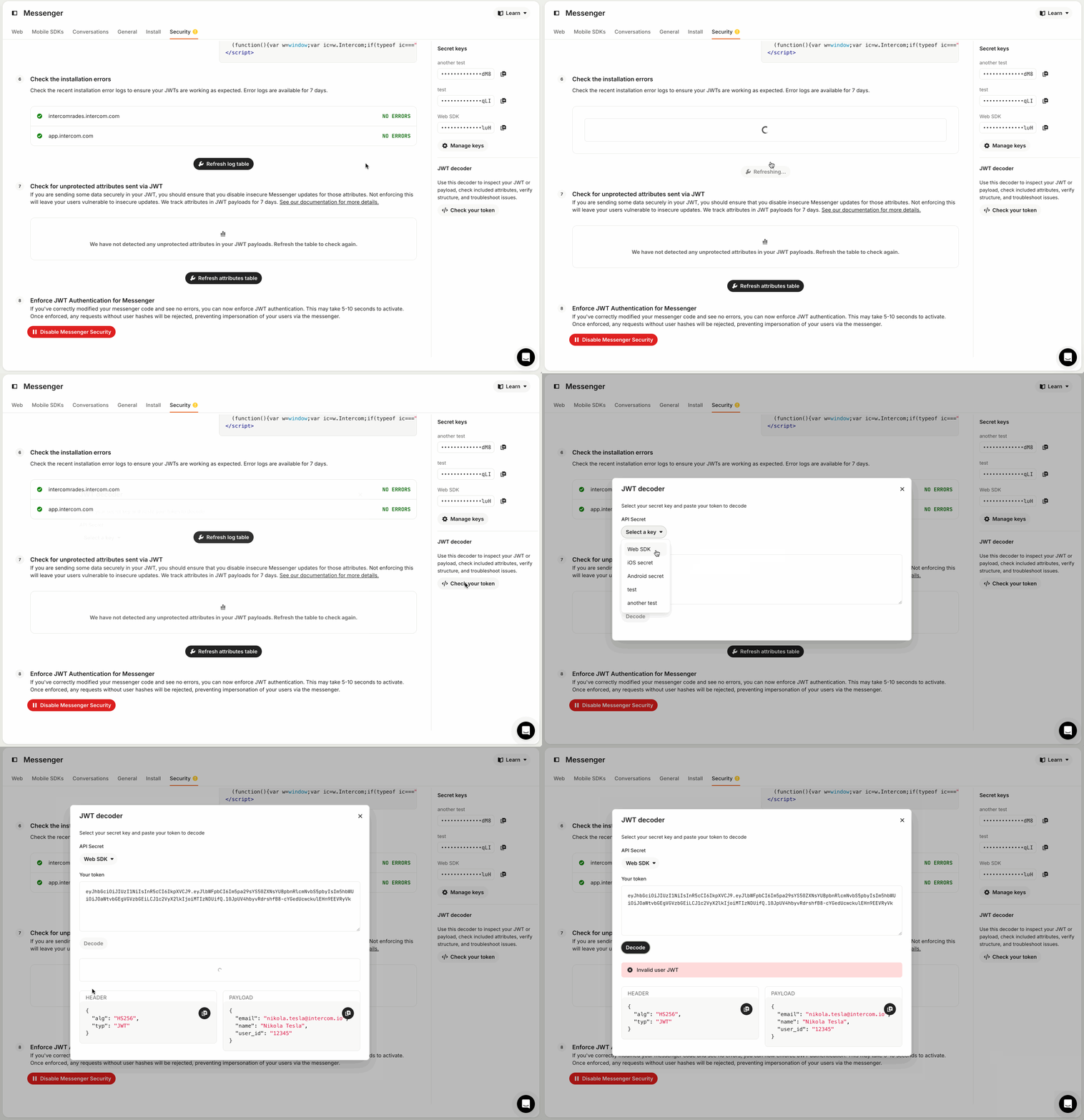
Messenger not working on some platforms: Confirm Messenger Security is enabled on web, iOS, and Android separately.
JWT generation errors:
- Always use the user's
user_id(not email) for token creation - Double-check you're using the correct Secret Key from workspace settings
- Check verbose logs on the Messenger Security setup page
- Use Intercom's token debugger to inspect JWT issues
What's Next
- Test your Messenger on web and mobile before launching to users
- Set up Intercom inbox routing so support conversations reach the right team
- Review Intercom's documentation on user attributes to enrich Messenger profiles