
Connecting your LinkedIn account to SalesMind AI is the first step before you can run any campaigns. This integration lets the platform send connection requests, messages, and automate your outreach on your behalf.
Prerequisites
- A SalesMind AI account (sign in at apps.sales-mind.ai/auth/sign-in)
- Google Chrome browser installed
- A LinkedIn account you want to use for outreach
👉 Note: SalesMind AI never stores your LinkedIn credentials directly. The connection works through a secure Chrome extension that reads your active LinkedIn session.
How to Connect Your LinkedIn Account
Step 1: Sign in to SalesMind AI
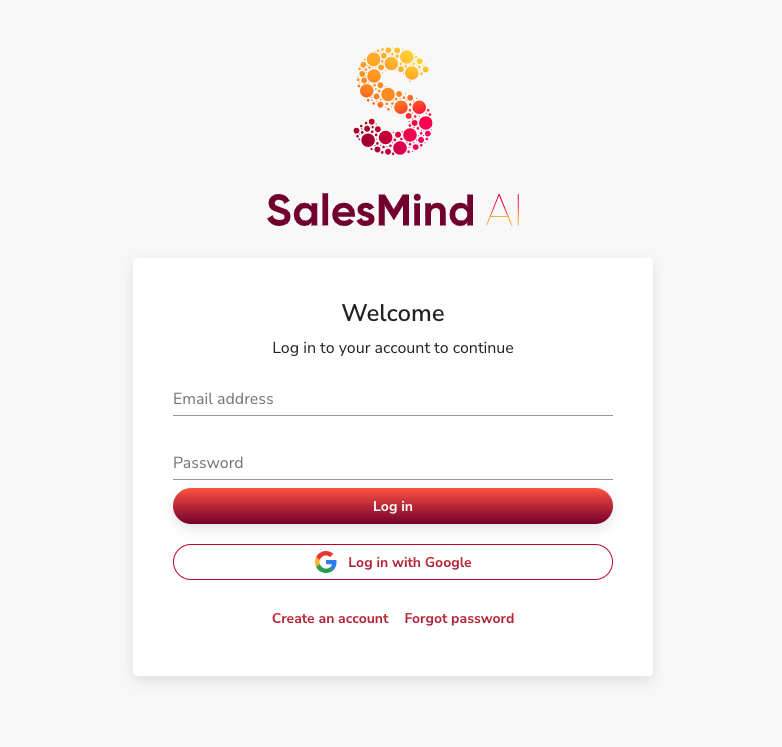
Go to your dashboard and sign in.
Step 2: Go to Agents
From the main menu, open the Agents section. Select the Agent you want to connect a LinkedIn account to. Each Agent can have one or more senders.


Step 3: Click "Add new Sender"
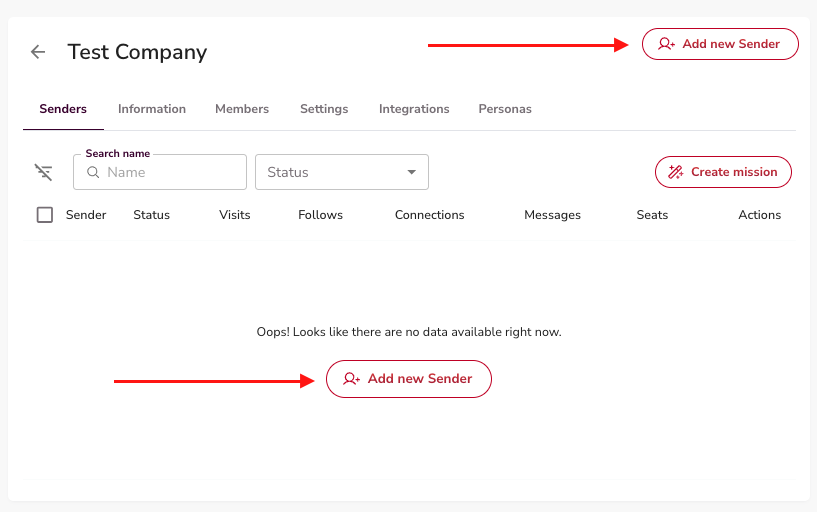
Inside the Agent page, click any Add new Sender button. This opens the LinkedIn connection setup.
Step 4: Install the Chrome Extension
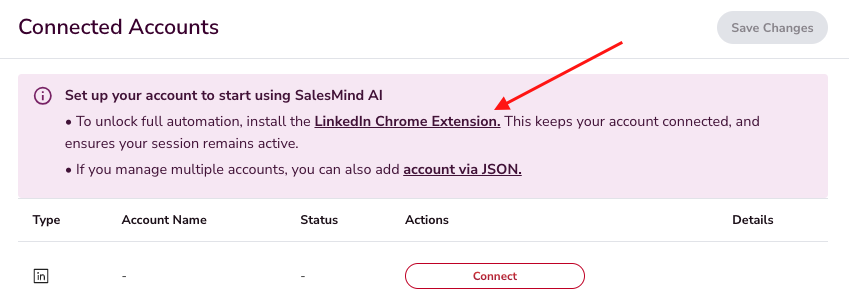
Download and install the SalesMind AI Chrome extension from the link shown in the setup flow. Once installed, the SalesMind AI icon will appear in your browser toolbar.
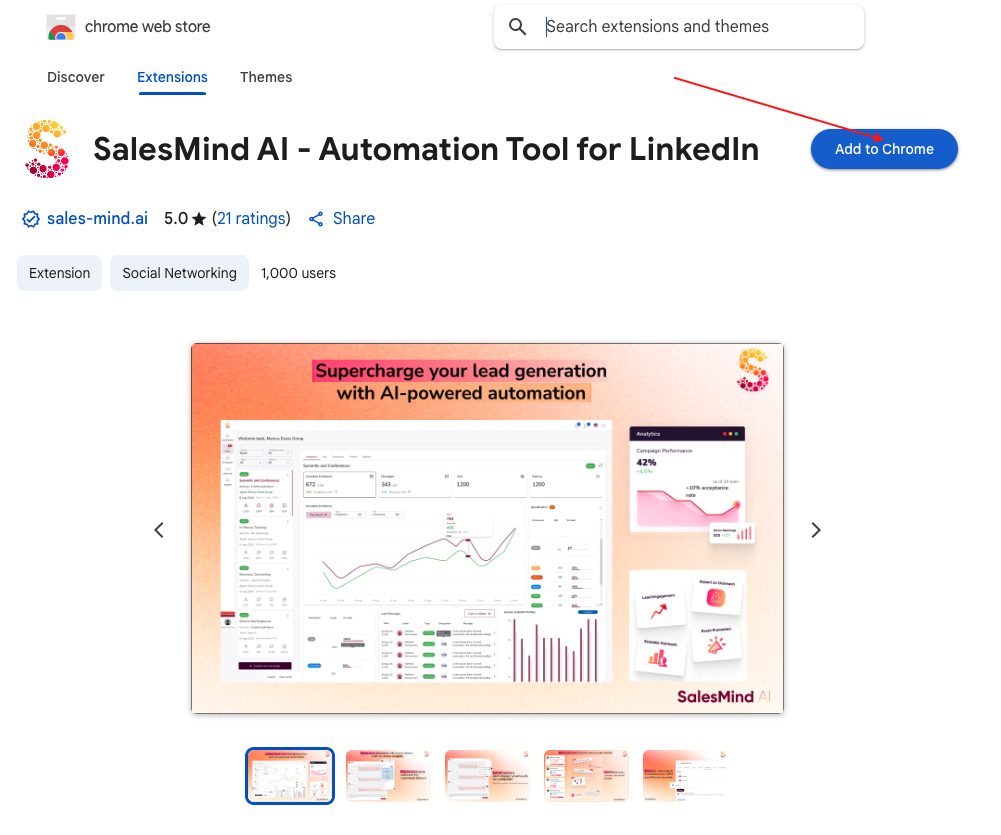
See the How to Install the SalesMind AI Chrome Extension article for detailed installation steps.
⚠️ Warning: Before continuing, make sure you're logged into the LinkedIn account you want to connect — in the same Chrome browser where the extension is installed.
Step 5: Connect the Account
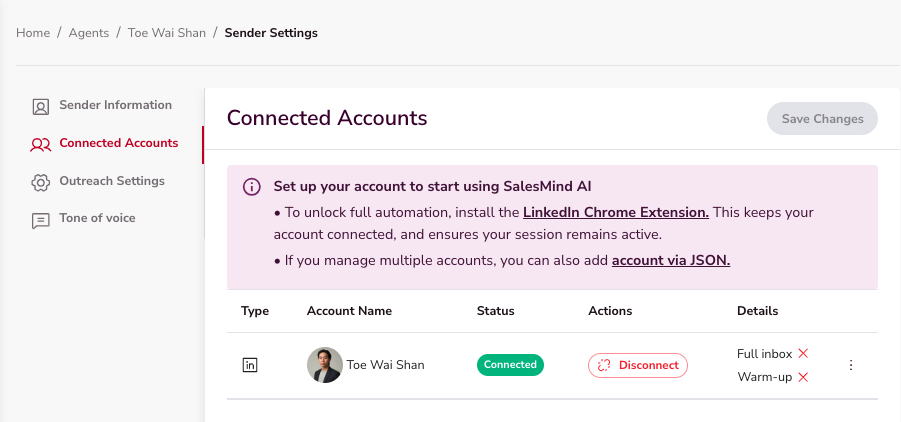
Return to the SalesMind AI dashboard. The system will automatically detect your LinkedIn session through the extension. Click Connect to link the account.
Verify the Connection
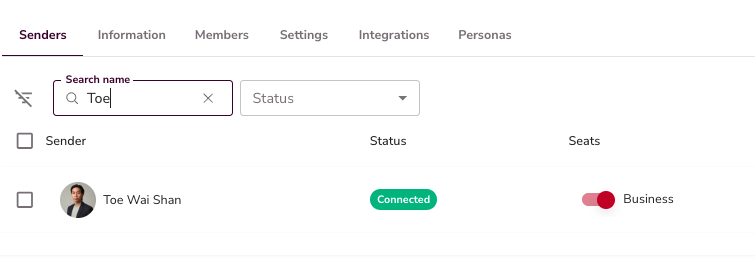
After connecting, your LinkedIn profile will appear under your Agent's Senders section.
- Go to Agents → Senders
- Confirm your LinkedIn profile shows as Connected
💡 Tip: If the status shows Disconnected, see the My Account Has Been Disconnected article to reconnect.
Quick Checklist
- Use Google Chrome with the SalesMind AI extension installed
- Stay logged into LinkedIn in the same browser to avoid disconnections
- Check your sender status before launching any campaign
- Reconnect anytime you see the "Disconnected" label
What's Next
Once your LinkedIn account is connected, you're ready to start outreach. Consider enabling Account Warmup if your account is new or hasn't been active recently — see the How to Warm Up Your LinkedIn Account article for details. When you're ready to run campaigns, see the Campaign Creation Step-by-Step Guide.