
What is a Mission?
A Mission sits above individual campaigns. Instead of building each campaign by hand, you define your services, target personas, and conversion goals once — then the AI generates multiple optimized campaigns automatically.
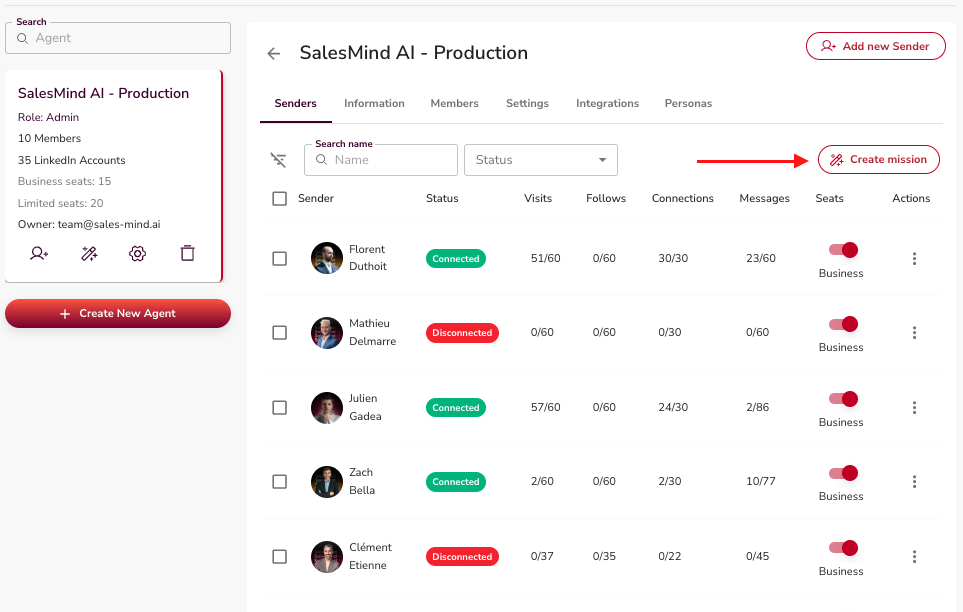
Missions are the fastest way to get multiple campaigns running and let you test across audiences, services, and value propositions without the manual setup overhead.
How to Create a Mission
Step 1: Select Profiles
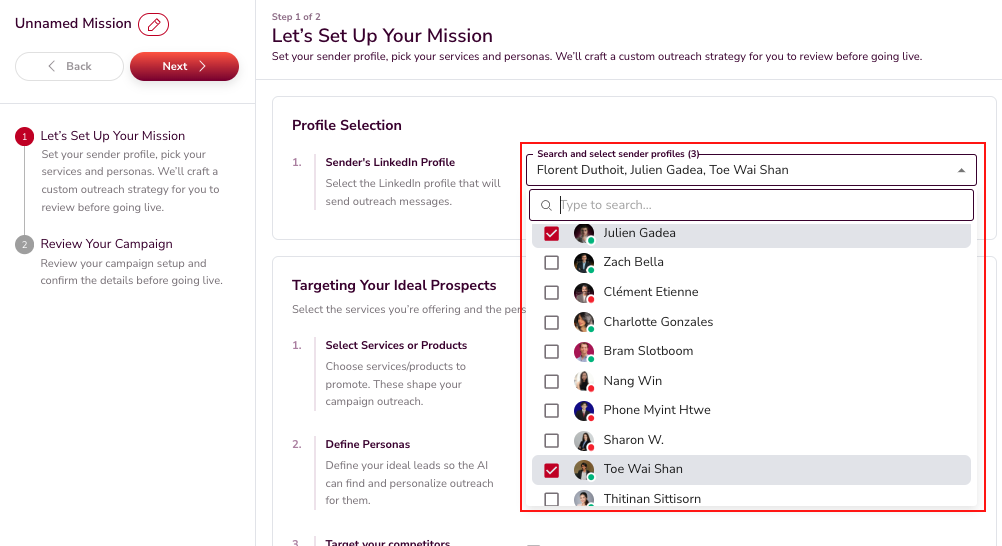
Choose which profiles (senders) will run the campaigns. Each profile is a LinkedIn account that handles outreach.
Step 2: Define Services
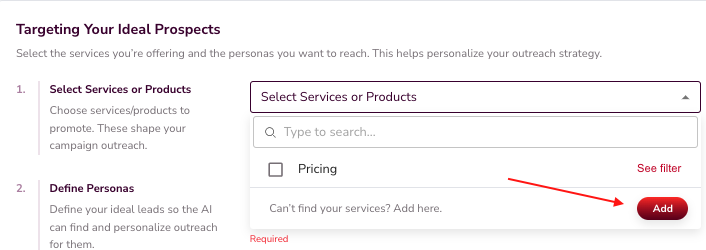
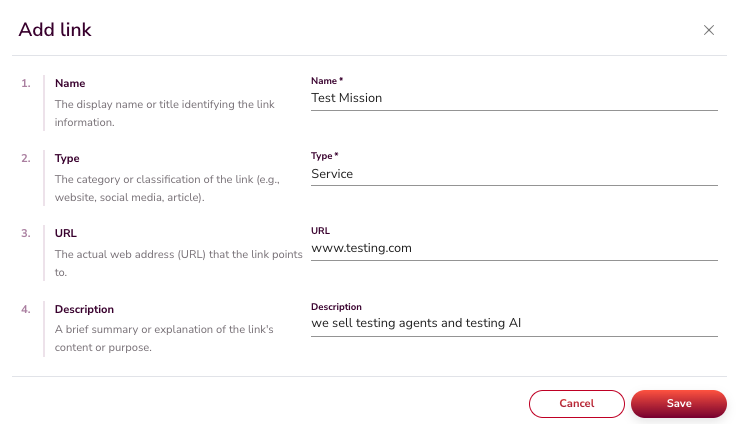
Add the products or services the AI should promote. For each one, include:
- Name
- Type (service or product)
- URL with detailed information
- Description to give the AI context
💡 Tip: Link to a detailed landing page or product page rather than your homepage. The AI uses this URL to pull relevant talking points.
Step 3: Add Personas
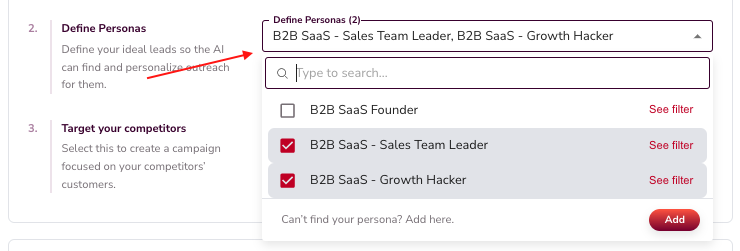
Select or edit personas that represent your target audiences. You can also add competitors for targeting. These personas define who the campaigns will reach.
Step 4: Set Conversion Goals
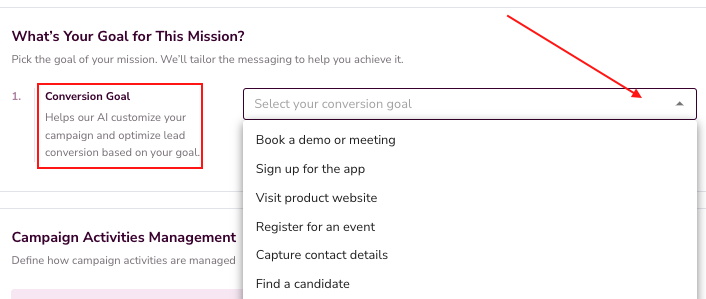
Tell the AI what outcome each campaign should drive:
- Book a demo or meeting (via chat or calendar link)
- Sign up for the app
- Visit a product website
- Register for an event
- Capture contact details (form, email, phone)
- Find a candidate (hiring use case)
The AI adjusts its conversation strategy based on the goal you pick.
Step 5: Manage Replies
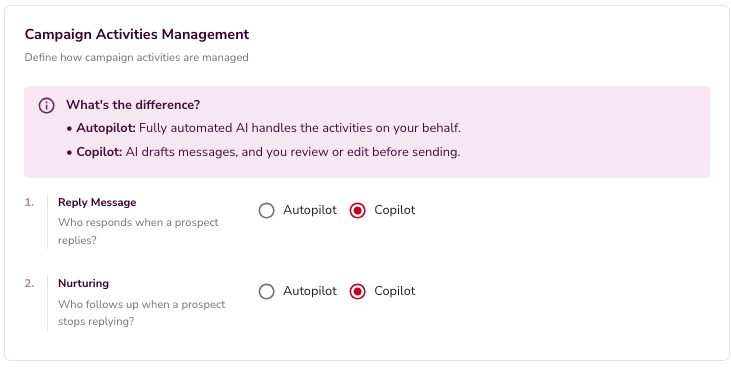
Choose how the AI handles incoming replies:
- Copilot — AI drafts responses, you approve them in the inbox before they send.
- Autopilot — AI replies automatically within 3-10 minutes.
- Nurturing — If a lead goes quiet, the AI follows up after a set delay.
👉 Note: Start with Copilot if you want to review AI responses before going fully automated.
Step 6: Advanced Settings
Fine-tune campaign behavior before launch:
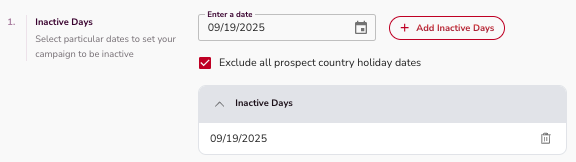
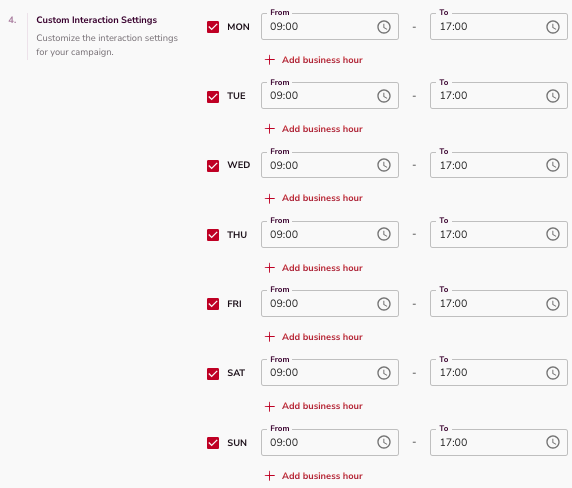
- Inactive Days — Schedule days when outreach pauses.
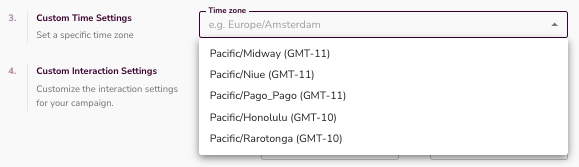
- Time Zones — Message prospects during their business hours.
- Blacklist — Exclude specific companies or profiles from outreach.
- Duplicate Security — Prevents multiple senders in the same Agent from contacting the same lead.

Step 7: Campaign Generation
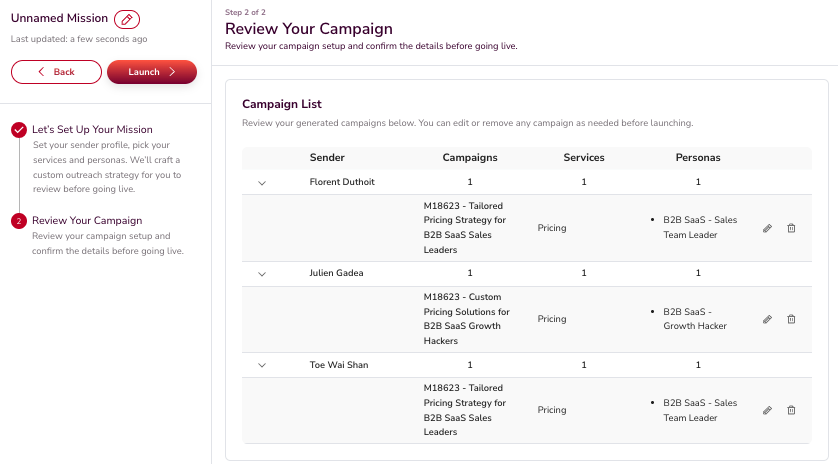
Based on your inputs, the AI generates multiple campaigns per profile. Each campaign includes leads, sequences, and outreach settings. You can edit or delete individual campaigns before activating them.
What's Next
For more detail on scheduling and limits, see the Outreach Settings article. To build campaigns manually instead, see the Campaign Creation article.