
The Inbox is your central hub for managing LinkedIn conversations inside SalesMind AI. Every prospect interaction lives here — messages, statuses, AI drafts, and lead details — all in one workspace.
The interface splits into three panels:
- Left Panel — Senders list, filters, search, and tags.
- Middle Panel — Conversation history and AI drafting tools.
- Right Panel — Prospect profile, persona fit, and qualification analysis.
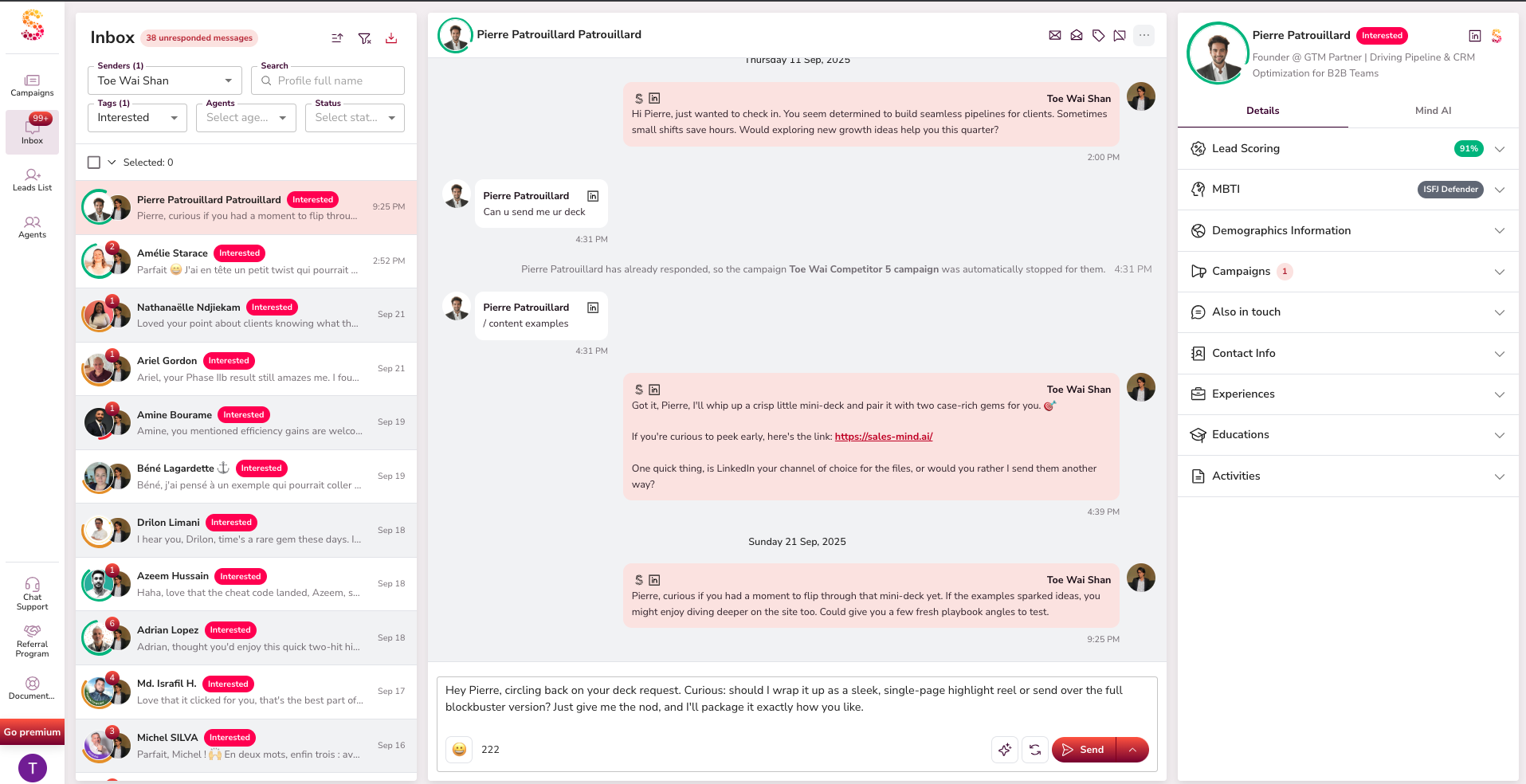
Conversation Management
- View all ongoing conversations across every sender in one place.
- Filter, sort, and search by name to find the right thread fast.
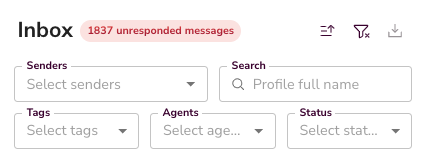
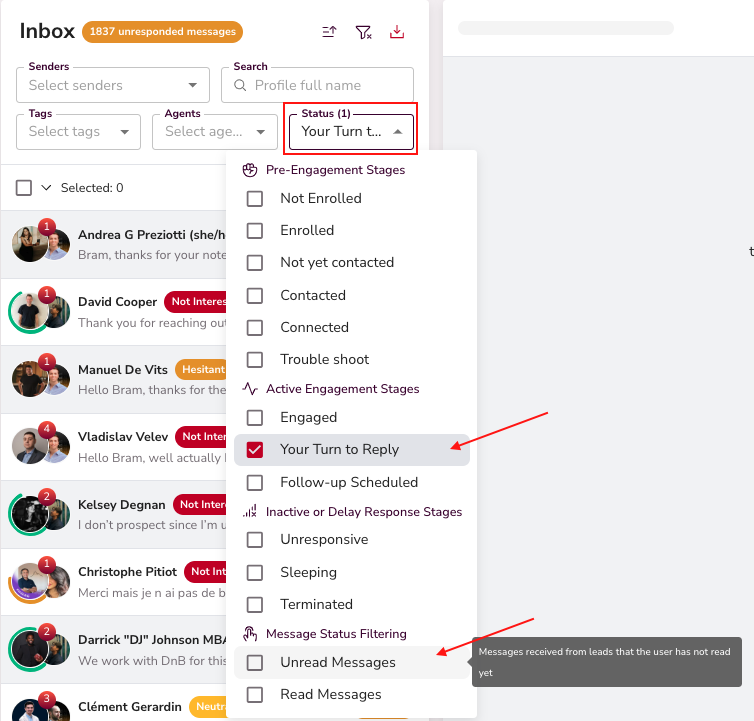
- Unread messages and "Your Turn" replies are highlighted so nothing slips through.
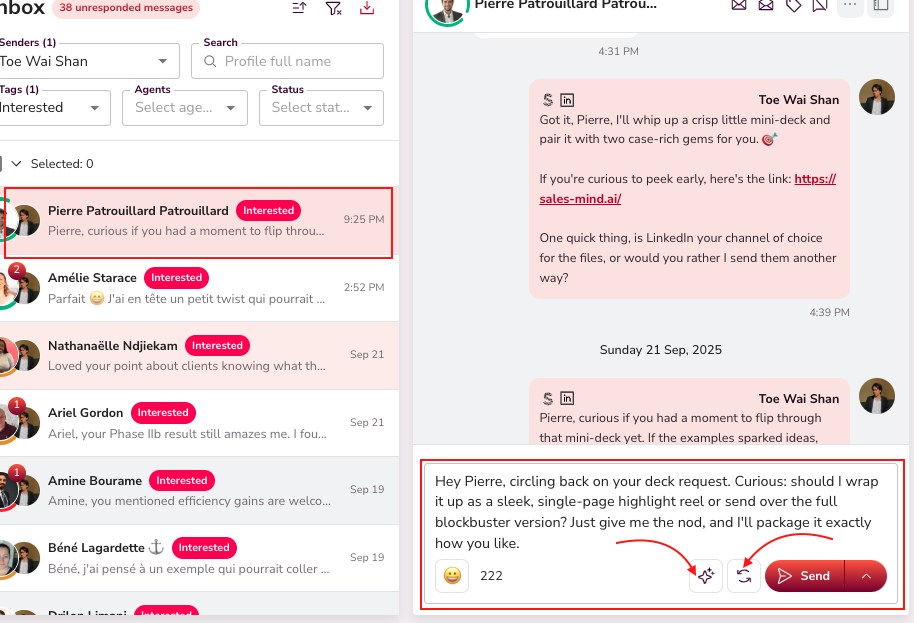
- Open any thread to see the full conversation history alongside AI-generated draft replies ready to validate.
Lead Status Tracking
Each conversation carries a status that updates automatically as prospects engage or go quiet:
- Connected, Engaged, Follow-Up Scheduled, Unresponsive, Sleeping, Terminated.
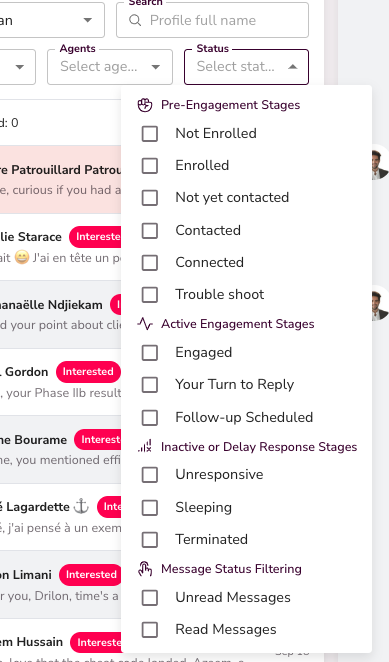
At a glance, you know exactly where every lead sits in the funnel.
Persona & Qualification


Each lead is matched to a persona defined in your Agent. The AI qualifies them — Neutral, Interested, Bad Timing — and shows a fit ratio with reasoning in the right panel.
💡 Tip: Use the persona fit score to prioritize which conversations to reply to first.
Bulk Actions
Select multiple conversations to act on them at once:
- Mark as read/unread
- Edit tags
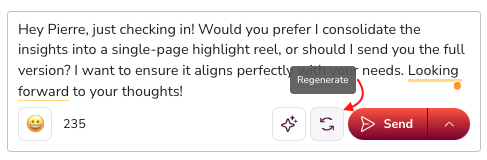
- Regenerate AI-suggested messages
- Send replies in bulk with one click
- Sync contacts to your CRM
- Retrieve email or phone numbers (requires enrichment integration)
- Terminate conversations when no further action is needed


AI Assistance
SalesMind AI gives you four ways to handle replies:
- Co-Pilot — Drafts a reply for you to review and approve before it sends.
- AutoPilot — Sends replies automatically within minutes, no approval needed.
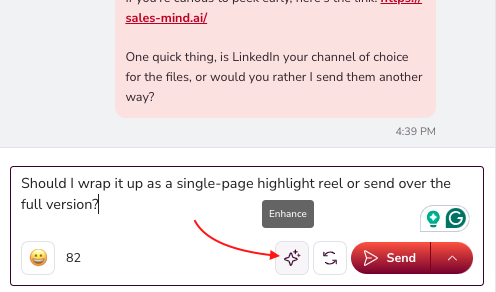
- Enhance — Improves the tone and clarity of a message you've already written.
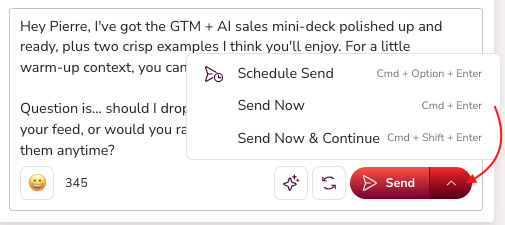
- Schedule Send — Choose to send now or at a specific time.
👉 Note: AutoPilot is best for high-volume follow-ups. Use Co-Pilot when a conversation needs a personal touch.
Prospect Profile Panel
The right panel shows everything you need to personalize your outreach:
- Demographics, education, work history, and recent activity
- MBTI communication style for tailored messaging
- Company profile and mutual connections
- Fit ratio with reasons for qualification


What's Next
- Learn how to use AutoPilot and CRM features in SalesMind AI — see the "Start Using the New AutoPilot & CRM Features" article in the help center.