
Prerequisites
Before you start, make sure you have:
- An active Sales Navigator seat (Team or Enterprise for TeamLink features)
- At least one Persona defined (optional but recommended)
- Access to your company's account lists if you plan to filter by saved companies
Why Lead Search Beats Cold Lists
The best pipeline isn't bought — it's built. Sales Navigator's Lead Search lets you find people who fit your ideal customer profile and share a connection path with you or your team. That combination of fit plus warmth is what separates a reply from silence.
Step 1: Open Lead Filters
- Go to your Sales Navigator homepage.
- Click Lead Filters next to the search bar.
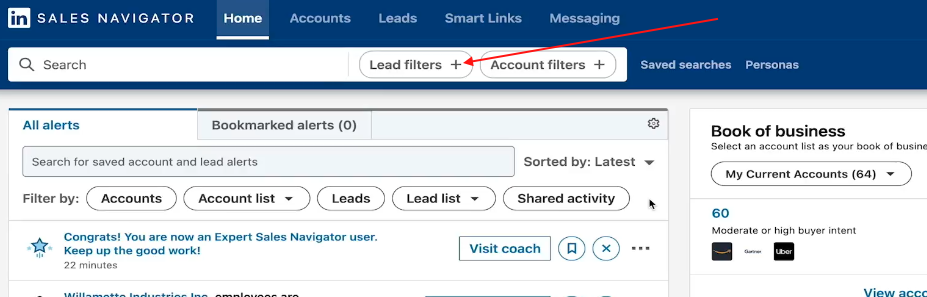
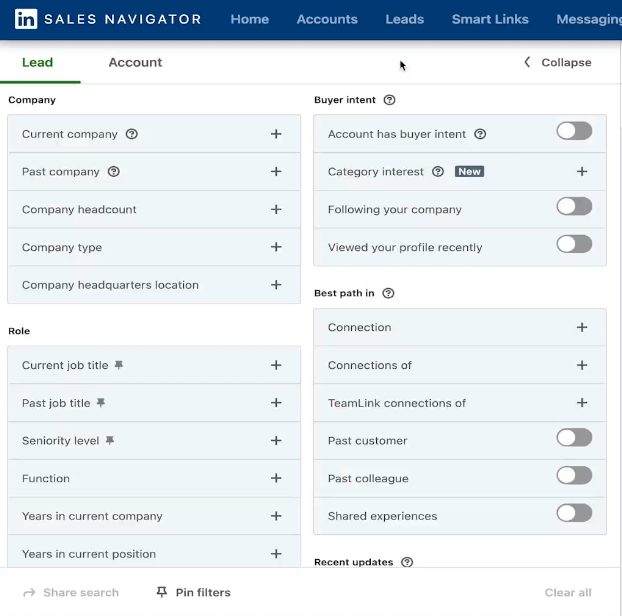
The Advanced Search panel opens. Key filters include:
- Geography, Industry, Job Title or Function
- Seniority Level, Years in Current Position
- Current or Past Company
- Posted Content Keywords
Step 2: Filter by Relationship Strength
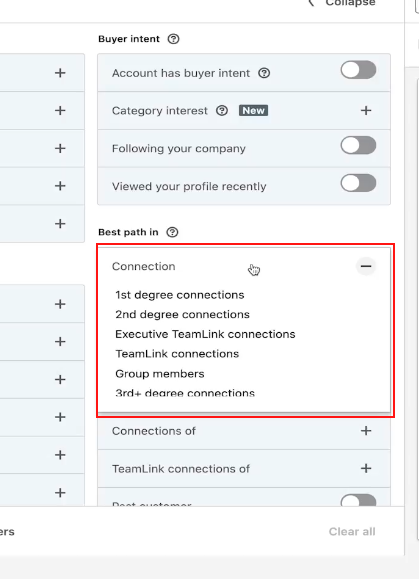
Sales Navigator surfaces leads based on how close they are to your network:
| Connection Type | What It Means |
|---|---|
| 1st-degree | Already in your network |
| 2nd-degree | Connected to your contacts — ideal for warm intros |
| TeamLink | Connected to a teammate's network (Team/Enterprise only) |
💡 Tip: Start with 2nd-degree or TeamLink connections. A mutual contact makes your first message 3x more likely to get a reply.
Step 3: Apply a Persona
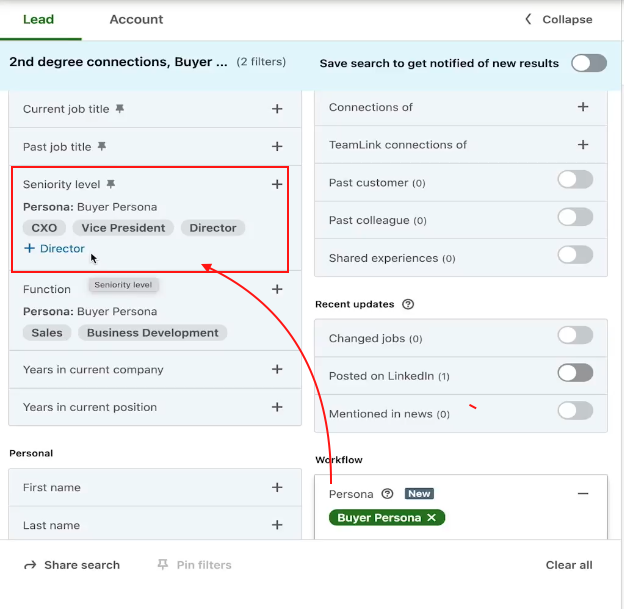
If you've set up Personas (e.g., "VP of Sales," "Marketing Director"), select one in the filters panel. It auto-loads your predefined criteria for function, seniority, and geography — no manual re-entry.
You can still layer on extra filters after applying a Persona to narrow results further.
Step 4: Use Past Company to Find Warm Leads
People who've worked at your existing customers already understand your space. Use the Past Company filter to find them:
- Under Past Company, enter the name of a satisfied client.
- Combine with Current Company to find people who've moved roles but stayed in your target industry.
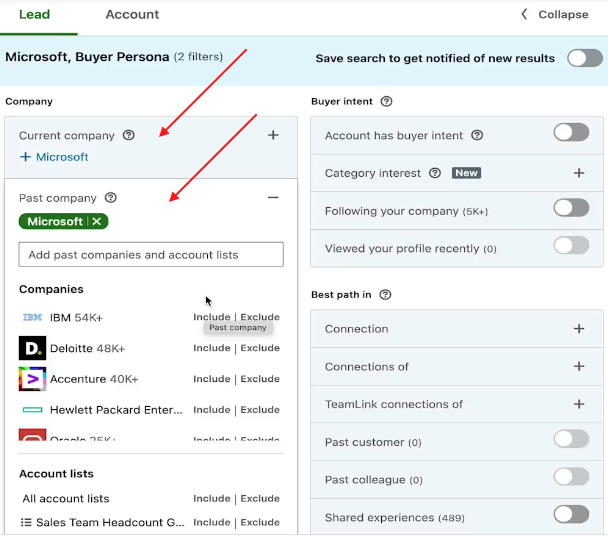
👉 Note: These leads often convert faster — they've seen your value firsthand or know someone who has.
Step 5: Save and Automate Your Search
Don't rebuild the same search every week. Save it once and let Sales Navigator do the work:
- Click Save Search in the top-right corner of your results.
- Name it clearly — e.g., "Marketing Leaders – Europe – SaaS."
- Toggle Search Alerts on to get notified when new leads match your criteria.
LinkedIn reruns the search automatically and pings you with fresh matches.
What's Next
- [Pinpoint the Right Buyers Using Lead Behavior] — Layer in behavioral signals like job changes and keyword activity to find leads who are ready to talk now.
- [Understanding Lead Pages] — Once you've found a lead, use their Lead Page to prep a personalized, informed outreach message.