
What Is a Lead Page?
A Lead Page is your research hub for an individual prospect inside Sales Navigator. It pulls together profile data, relationship context, recent activity, and CRM records in one place — so you can walk into any conversation prepared.
Think of it as a LinkedIn profile redesigned for selling: structured, focused, and loaded with signals that help you personalize your outreach.
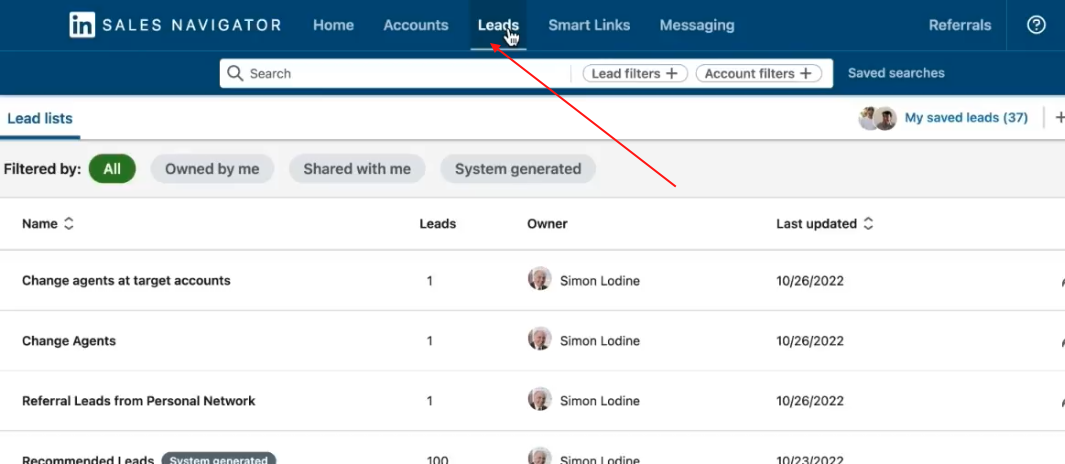
Prerequisites
- A saved lead in Sales Navigator
- Optional: Salesforce or Microsoft Dynamics connected for CRM sync
Navigating the Lead Page
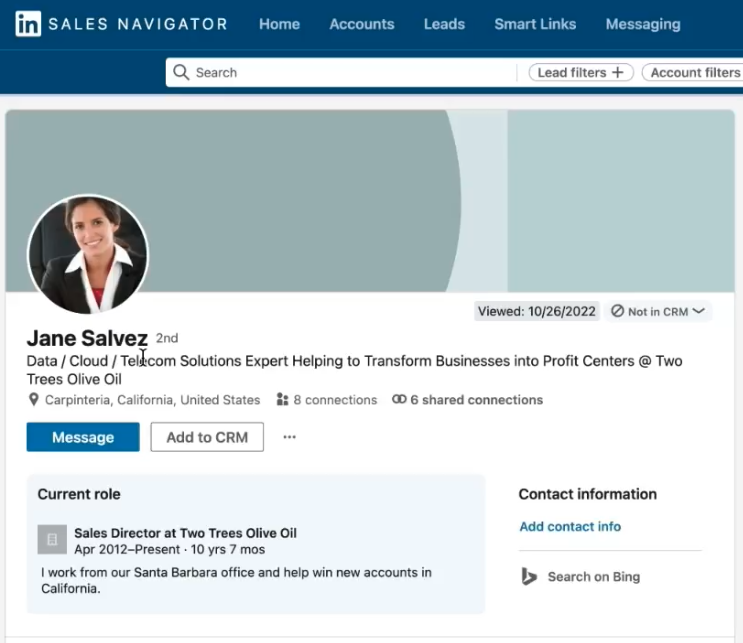
1. Profile Summary
At the top you'll see:
- Current role, title, and company (linked to the Account Page)
- Location and industry
- A short professional summary
Click See more to expand responsibilities and specialties. This snapshot is your starting point for tailoring an opening line that shows you've done your homework.
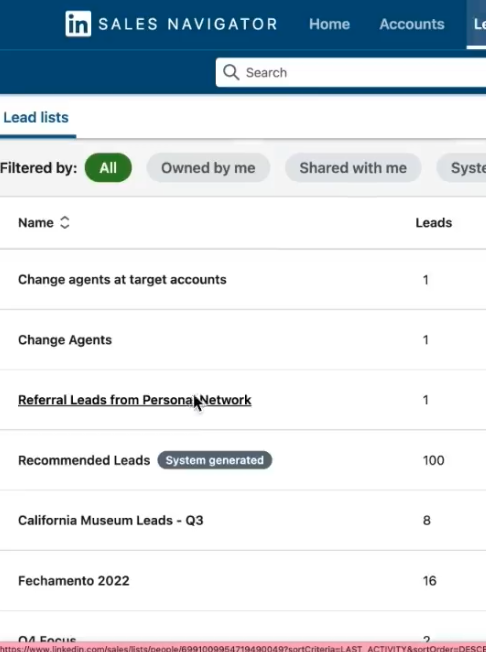
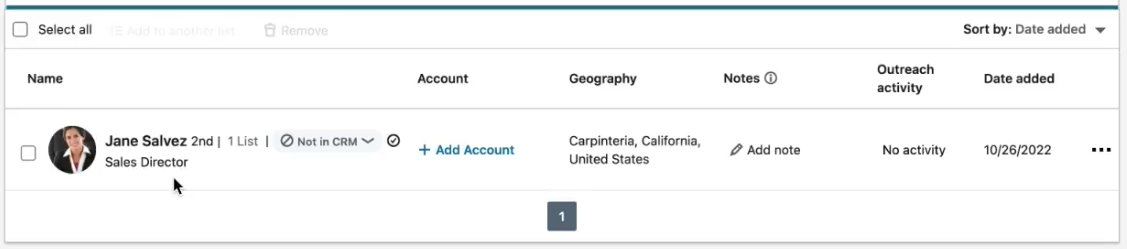
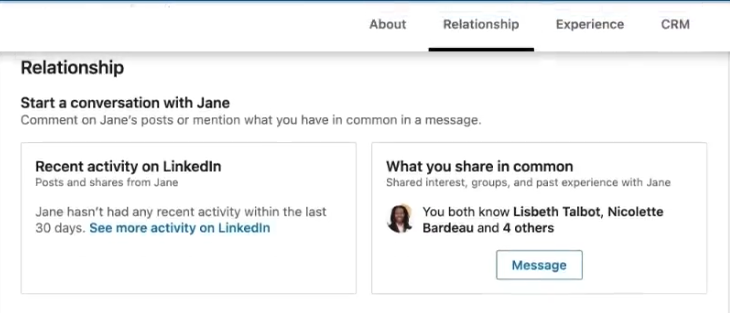
2. Relationship Insights
Sales Navigator highlights shared connections, groups, and common interests between you and the lead. Below that, you'll see their recent activity — posts, comments, and shared articles.
This is where cold outreach becomes warm. Reference a post they published, a group you share, or a topic they've been vocal about.
3. Get Introduced
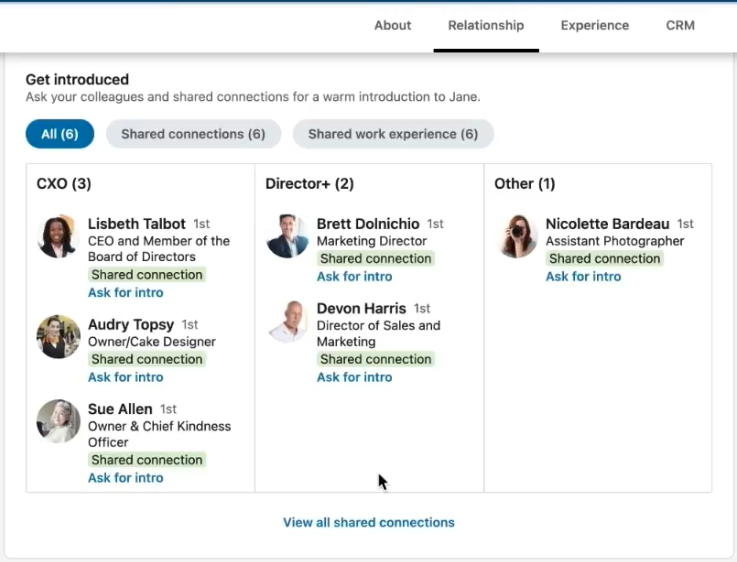
Under Get Introduced, you'll find mutual contacts who can make a warm referral. Sort by:
- Shared connections — first-degree introductions
- Shared work experience — former colleagues
- TeamLink connections — teammates' networks (Team/Enterprise plans)
Click Message next to a shared contact to send an intro request they can forward directly.
💡 Tip: Keep intro requests short. Explain how your product helps their colleague's team specifically — not just that you'd "love to connect."
4. Experience and Background
Scroll down for the lead's full career history: past roles, responsibilities, and tenure. Use this to spot shared employers, aligned industries, or career transitions that give you a natural conversation hook.
If your account syncs with Salesforce or Microsoft Dynamics, you can view or create CRM records directly from this page — no tab-switching required.


👉 Note: CRM sync requires a connected integration. Check your Sales Navigator admin settings if records aren't appearing.
What's Next
- [Engaging and Sharing Content with Buyers] — Use the insights from the Lead Page to craft a personalized InMail or warm referral request.
- [Pinpoint the Right Buyers Using Lead Behavior] — Learn how to find leads like this one using behavioral filters before you even open their Lead Page.