
Managing an Agent in SalesMind AI
An Agent represents a company, department, or client inside SalesMind AI. Your sales team might use one Agent while your recruitment team uses another. Agencies typically create one Agent per client.
Everything that shapes how outreach runs lives inside the Agent: senders, team roles, company knowledge, integrations, and personas.
👉 Note: For a full overview of what an Agent is, see the "What is an Agent in SalesMind AI?" article.
Managing Senders
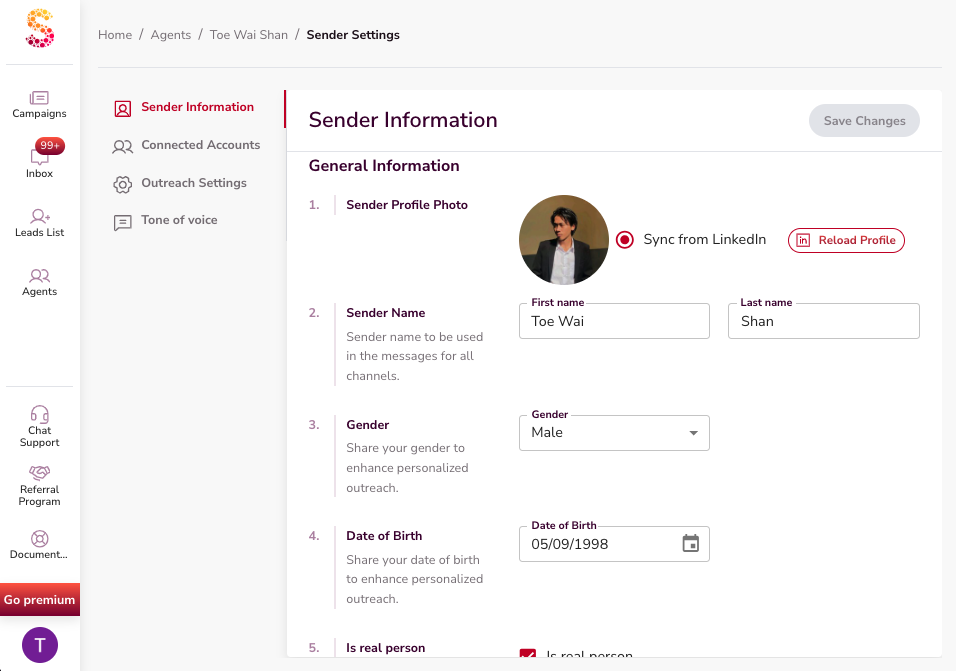
A sender is a single person's outreach identity — typically their LinkedIn account. Each sender carries a first name, last name, and contact info.
⚠️ Warning: In languages where gender or tone affects writing (French, Thai, etc.), make sure sender details are accurate. The AI uses this information when generating messages.
Over time, senders will support multiple connected channels beyond LinkedIn.
Knowledge Base
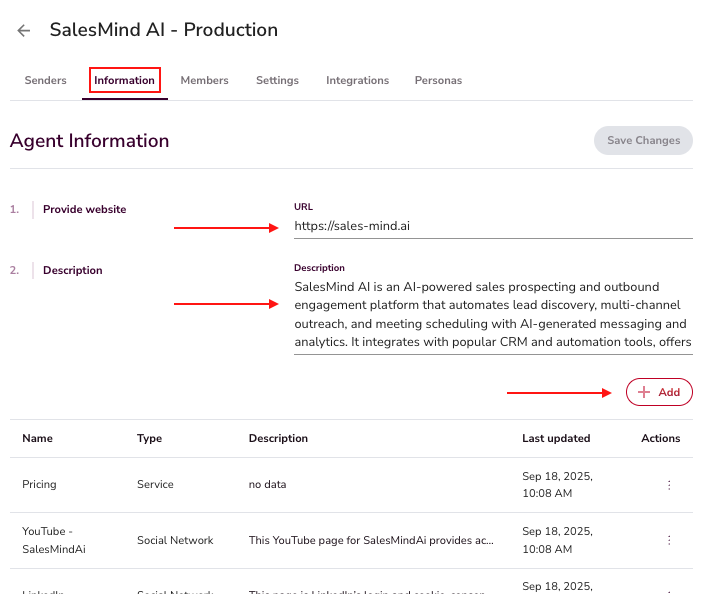
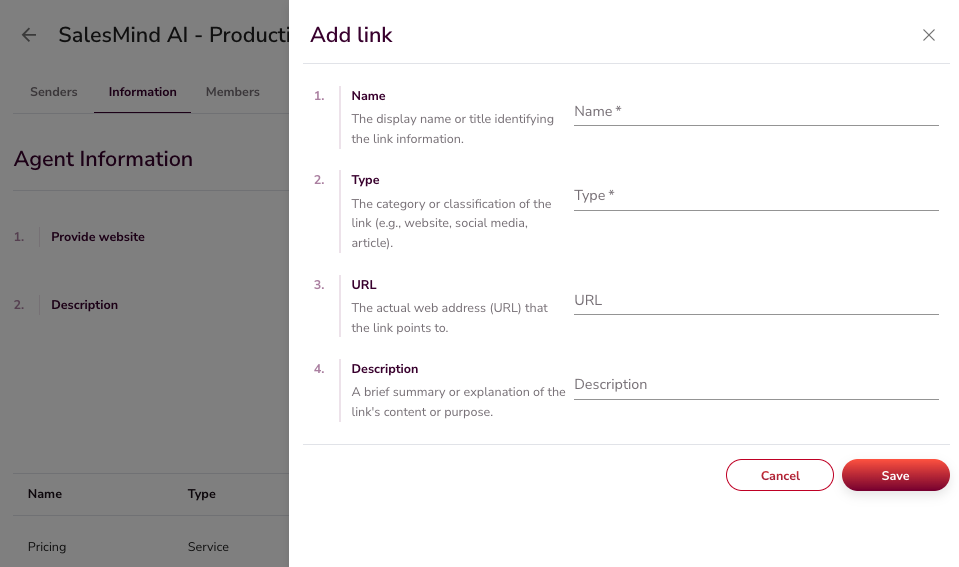
The Agent's information hub is what the AI references during conversations. Keep it current with:
- Services and features (e.g., AI Lead Finder, White Label)
- Competitor LinkedIn URLs
- Sales decks, case studies, and testimonials
- Booking links and social media pages
This ensures the AI always has the right resource to share — whether it's a blog post for early nurturing or a demo link when a lead is ready to convert.
Members and Roles
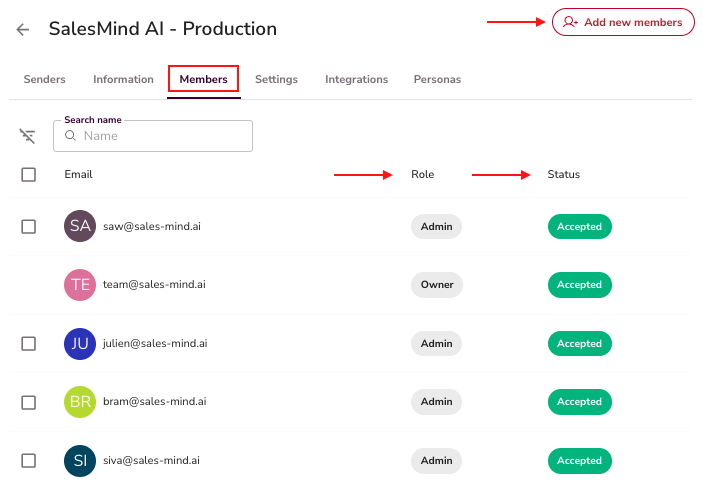
Add or remove team members and assign roles (Admin or Owner). Roles control what each member can access and modify.
⚠️ Warning: The Owner role cannot be deleted or reassigned.
Settings and Integrations
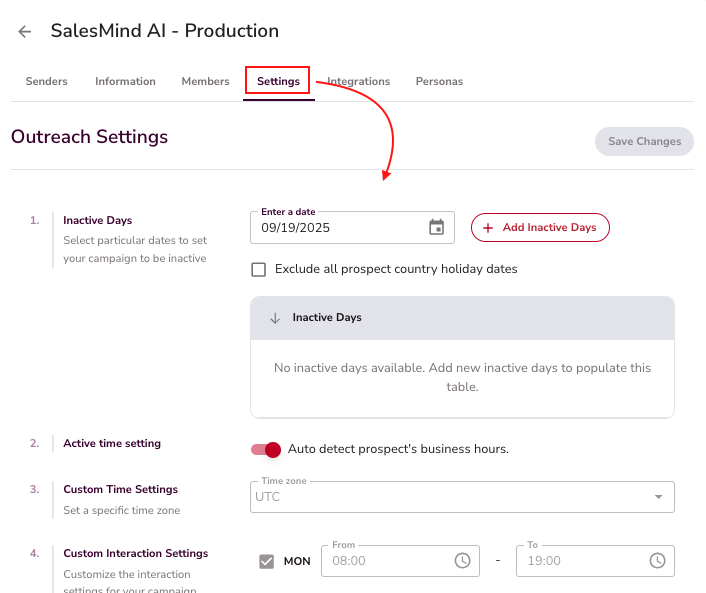
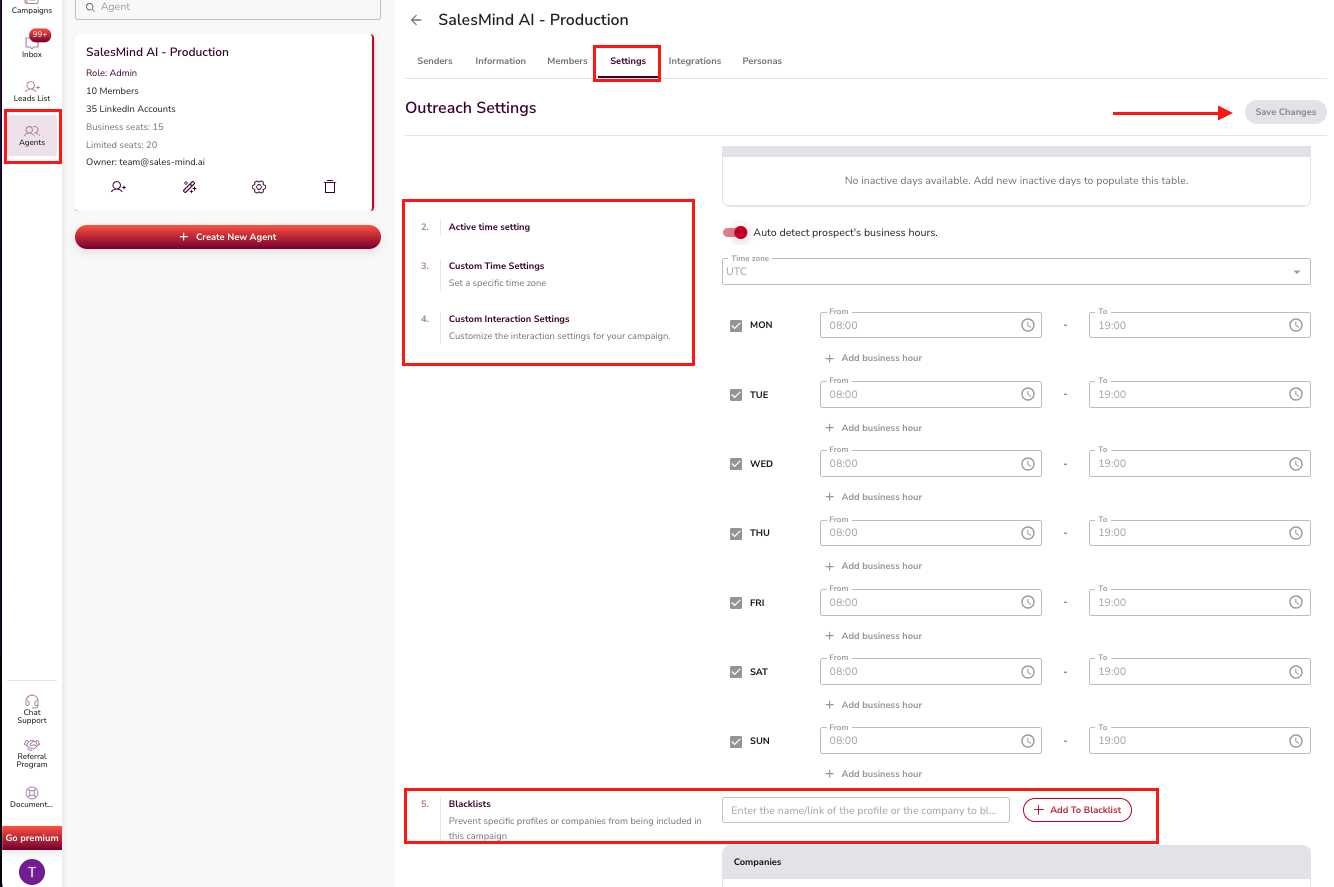
- Outreach Settings — Configure schedules, inactive days, and time zones. See the Outreach Settings article for full details.
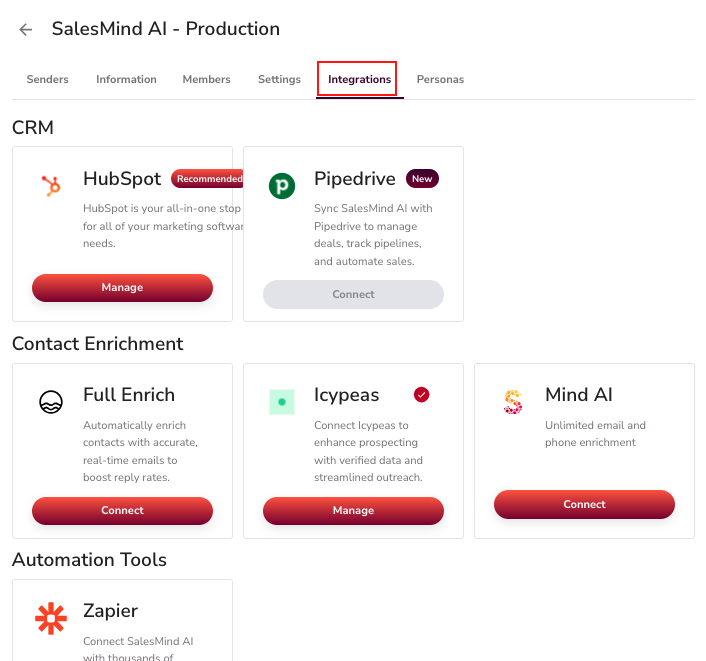
- CRM Integration — Connect one CRM per Agent (HubSpot, Pipedrive, etc.). The AI can auto-create deals, tasks, and sync contacts.
- Contact Enrichment — Use built-in enrichment partners or SalesMind AI's unlimited enrichment to fill in missing emails and phone numbers.
- Zapier and Automations — Connect Zapier directly from the integrations section to link SalesMind AI with other tools in your workflow.
Personas
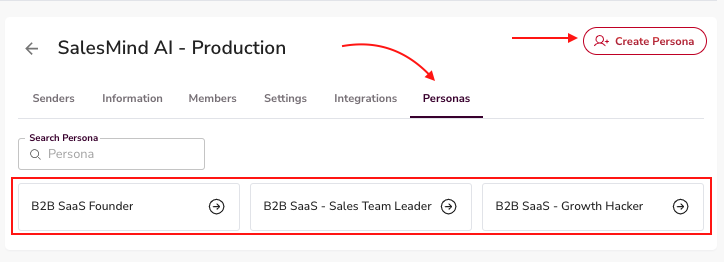
Personas define your ideal customer segments. Each Agent can hold multiple personas.
Personas don't need constant updates, but refine them as campaign data comes in. If CEOs consistently respond better than Owners, update the persona to reflect that. Better targeting means better AI qualification.
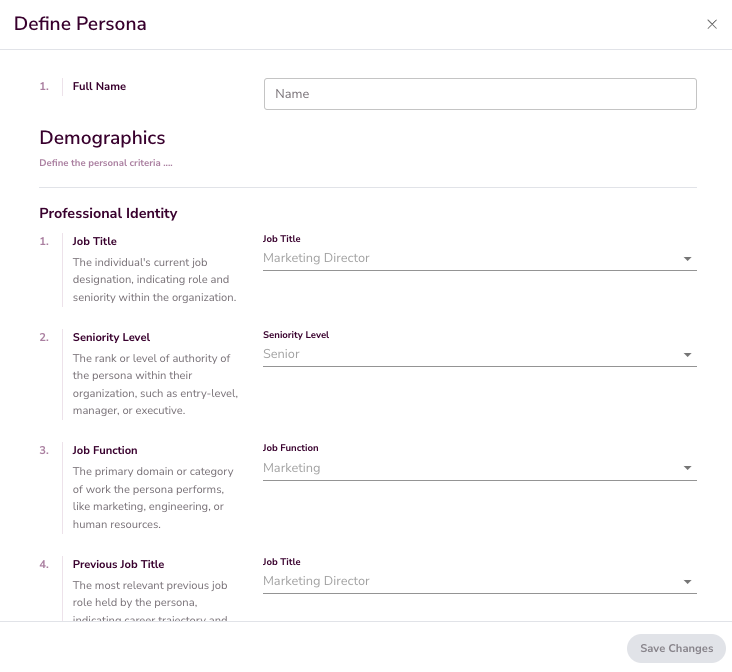
💡 Tip: Use real campaign data to refine personas over time. Small adjustments to job titles and seniority levels can meaningfully improve reply rates.
What's Next
With your Agent configured, you're ready to create campaigns or set up a Mission. See the "What is a Mission and How to Create One" article to launch multiple campaigns at once.