
Prerequisites
- Google Chrome installed on your computer
- An active SalesMind AI account
- A LinkedIn account you want to connect
What the Extension Does
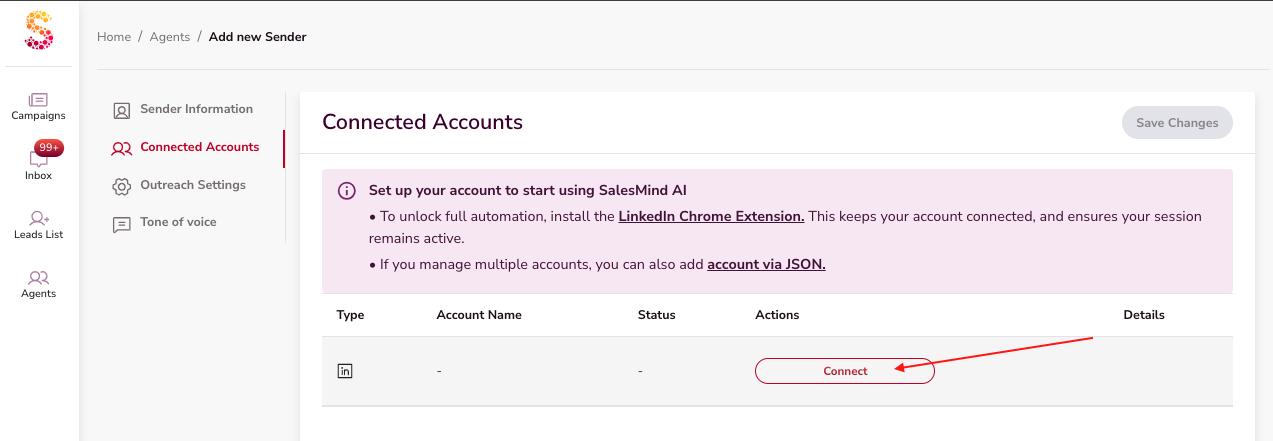
The SalesMind AI Chrome Extension links your LinkedIn account to the platform. It captures your LinkedIn session cookies so SalesMind AI can automate outreach on your behalf — safely and without storing your password.
⚠️ Warning: Without the extension installed and active, SalesMind AI cannot access LinkedIn or run any automation.
Step 1: Install the Extension
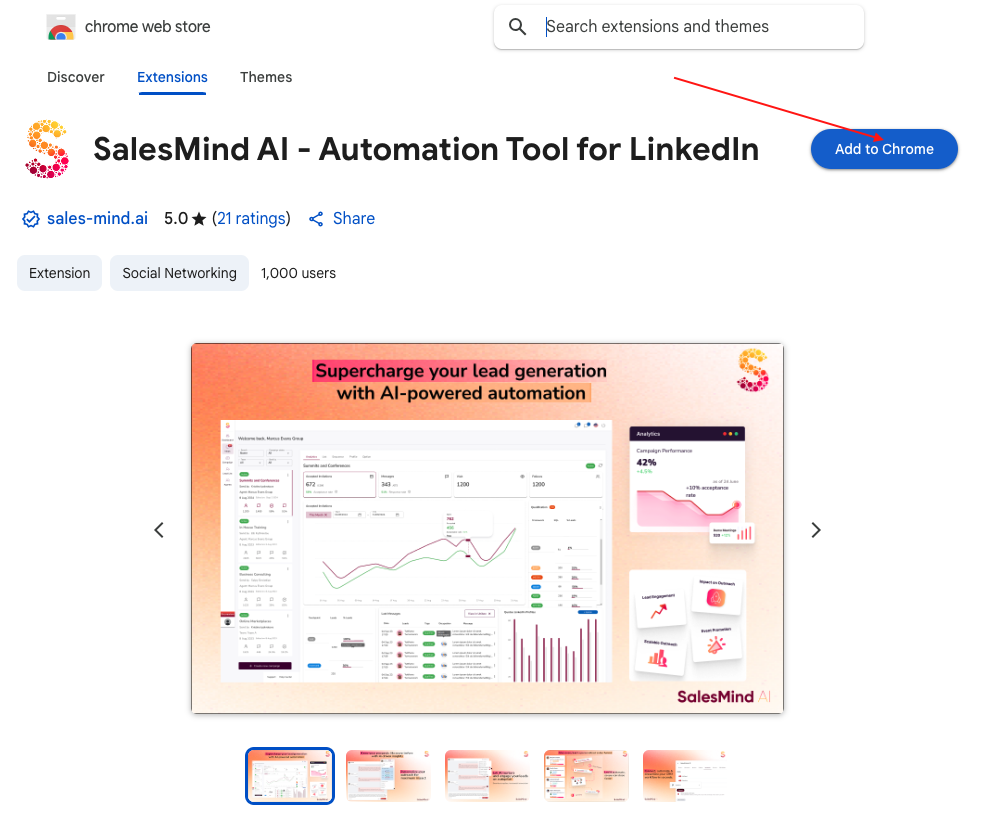
- Open the Chrome Web Store link provided in your SalesMind AI dashboard.
- Click Add to Chrome, then confirm by clicking Add extension.
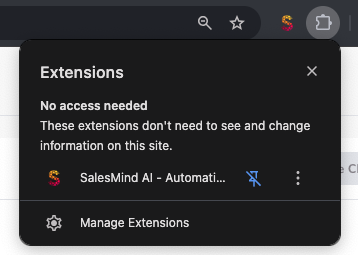
- Once installed, the SalesMind AI icon appears in your browser toolbar.
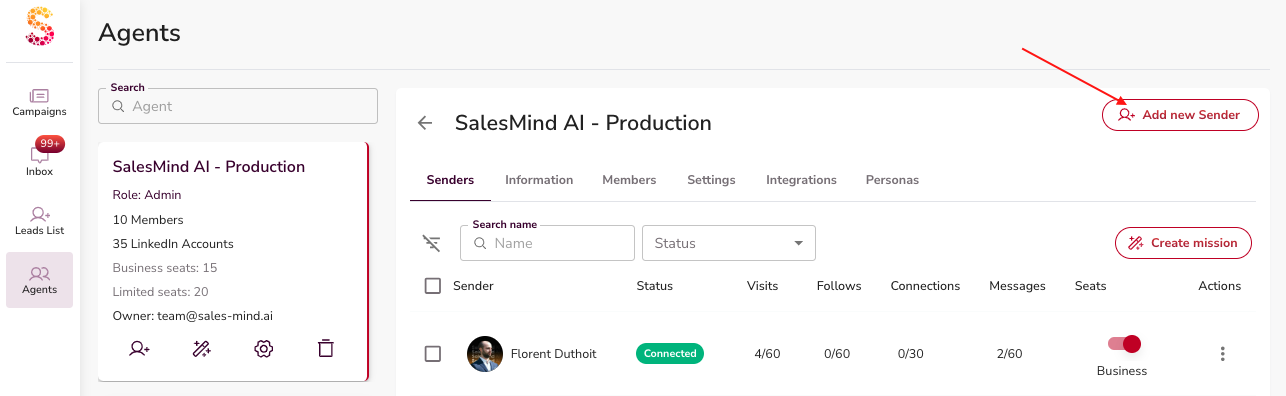
Step 2: Link Your LinkedIn Account
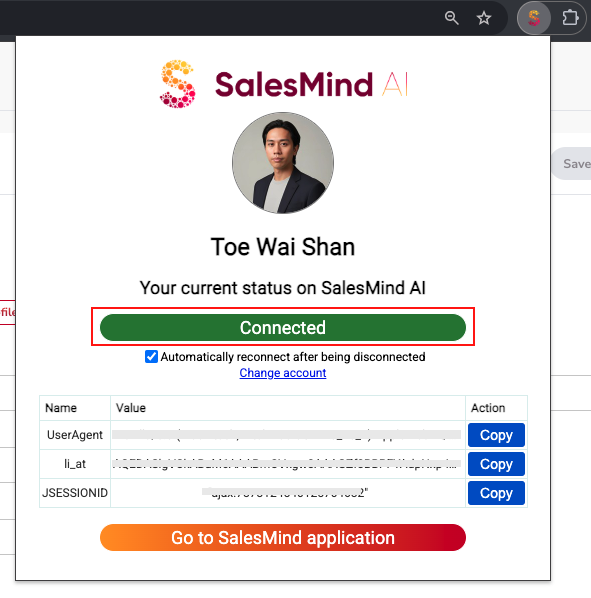
- Click the SalesMind AI icon in your toolbar to open the extension.
- Log in to your LinkedIn account if prompted.
- SalesMind AI retrieves your LinkedIn session cookie — including Sales Navigator if you have it.
This lets SalesMind AI perform actions as if you were using LinkedIn directly.
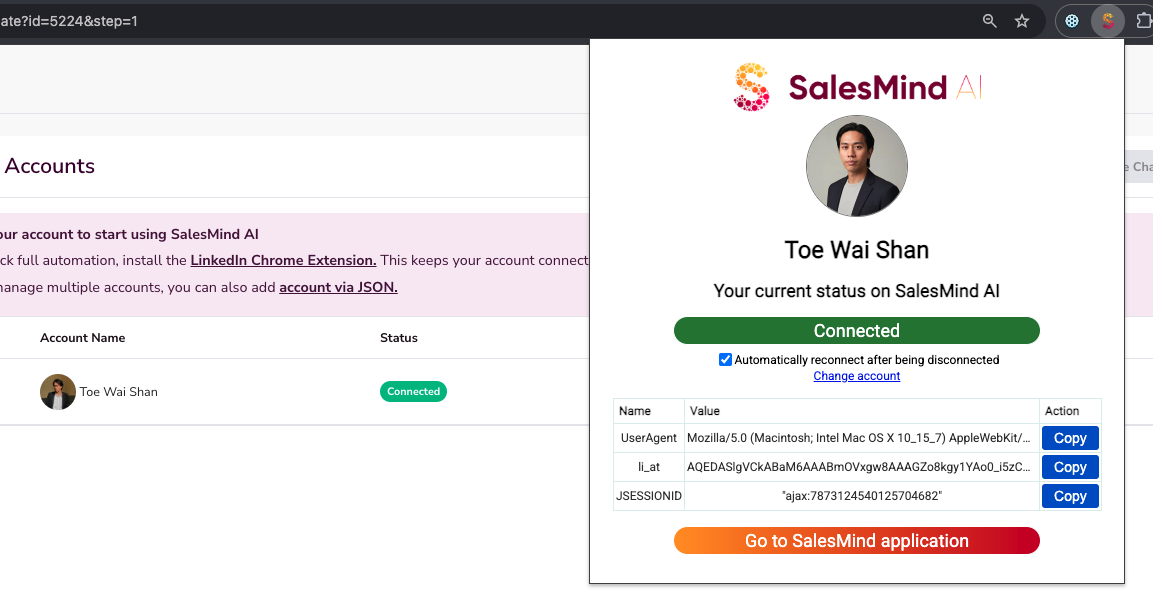
Step 3: Enable Auto-Reconnect
LinkedIn and Chrome occasionally refresh session cookies. Turn on Auto-Reconnect in the extension settings so SalesMind AI re-establishes the connection automatically when that happens.
💡 Tip: Keeping Auto-Reconnect on prevents unexpected disconnections that would pause your campaigns.
Switching LinkedIn Accounts
You can change which LinkedIn account is connected at any time:
- Open the extension.
- Log out of the current account.
- Log in with the new account.
What You Can Do Once Connected
- Open conversations in SalesMind AI directly from any LinkedIn profile.
- Access your full Inbox and reply with AI-assisted messages.
- View enriched profile insights — details about a prospect and their company beyond what LinkedIn shows.
What's Next
- If your account shows as disconnected, see the "How To Reconnect The Chrome Extension" article in the help center.