
Why Timing Beats Targeting
Job title and company size tell you who to reach. Behavioral signals tell you when. Sales Navigator surfaces real-time activity — role changes, keyword mentions, content engagement — so you can reach prospects at the exact moment they're most receptive.
Prerequisites
- Sales Navigator Core, Advanced, or Advanced Plus
- A defined target persona or ICP (ideal customer profile)
- Familiarity with Lead Filters (see [Creating and Prioritizing Lead Searches])
Step 1: Find Change Agents — Newly Appointed Leaders
People who just stepped into a new role are actively shaping their team's tools and strategy. They're your best opening.
- Open Lead Filters from the Sales Navigator search bar.
- Set your target Function (e.g., Sales, Marketing, Operations).
- Under Seniority Level, select Manager through CXO.
- Scroll to Years in Current Position and filter for less than 1 year.
Your results show decision-makers who are new to their role — and likely planning their first big initiatives.
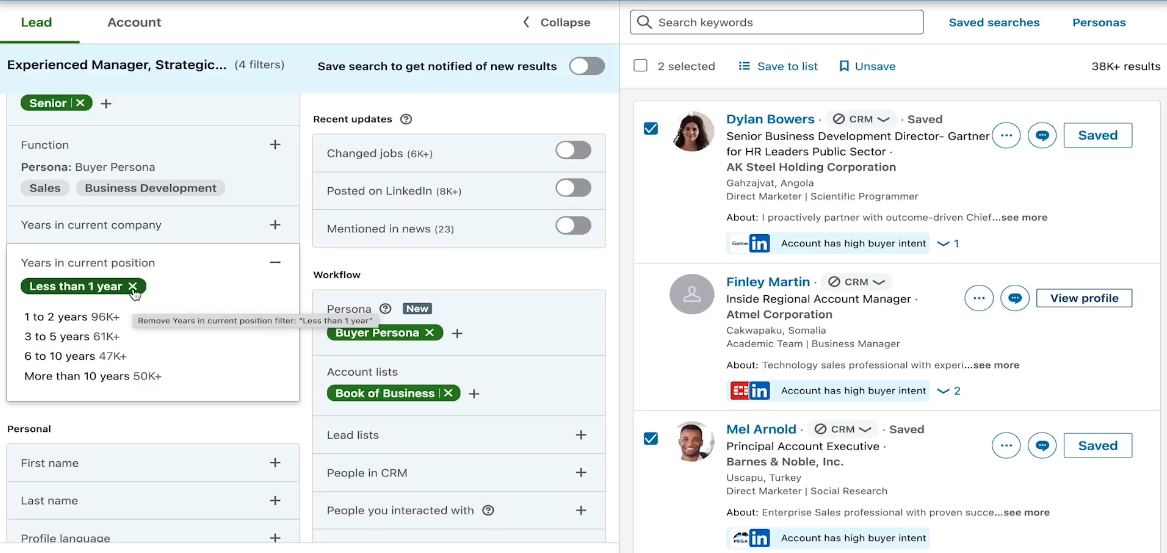
💡 Tip: Pair this filter with a Persona to instantly scope results to your exact buyer profile without rebuilding criteria each time.
Step 2: Use Keywords to Spot Buying Intent
Sales Navigator searches profile text and recent posts for keywords. This surfaces leads who are actively thinking about problems your product solves.
Examples by use case:
| Your Product | Keywords to Try |
|---|---|
| Marketing automation | "demand generation", "HubSpot", "CRM integration" |
| Sustainability tech | "carbon footprint", "ESG initiatives", "renewable energy" |
| Sales intelligence | "AI prospecting", "pipeline efficiency", "outbound strategy" |
How to apply it:
- In the Lead Filters panel, find the Keywords field.
- Enter your phrase (e.g., AI prospecting).
- Review leads whose profiles or recent posts mention that term.
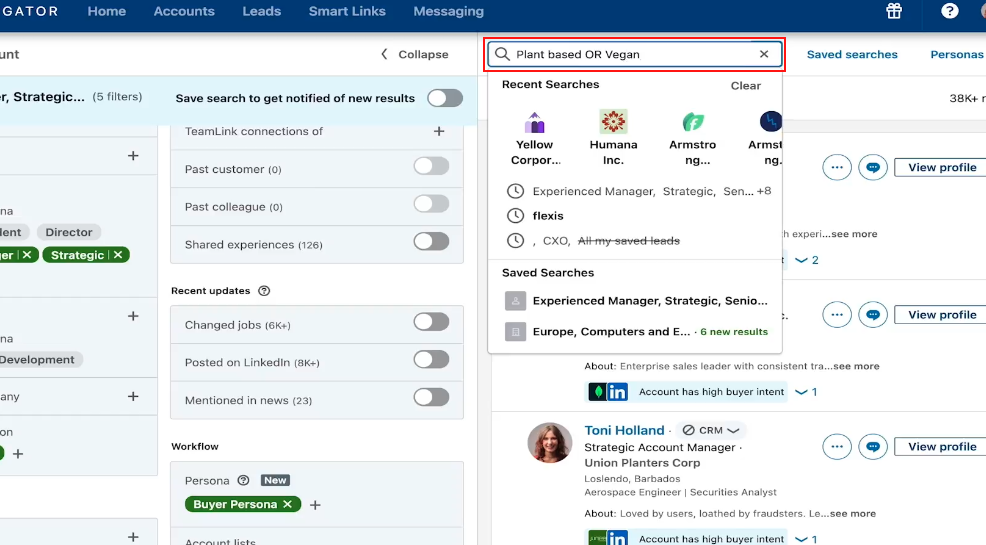
👉 Note: Keywords match against profile descriptions and recent posts. A lead who just published an article about your topic is a much warmer prospect than one who listed it as a skill years ago.
Step 3: Save the Search and Get Alerts
Once your behavioral filters are dialed in, save the search so new matches surface automatically.
- Click Save Search at the top right of your results.
- Toggle Get Alerts for New Matches.
- Choose your notification preference: in-app or email.
Sales Navigator reruns the search and notifies you when fresh leads meet your criteria — no manual checking required.
⚠️ Warning: Saved searches run on a delay (typically daily). For time-sensitive signals like job changes, check your Homepage Alerts feed for real-time updates.
What's Next
- [Understanding Lead Pages] — Once you've identified a high-intent lead, use their Lead Page to research talking points before you reach out.
- [Engaging and Sharing Content with Buyers] — Learn how to turn behavioral signals into personalized outreach with InMail and Smart Links.