
Standard LinkedIn search is one of the fastest ways to build a targeted prospecting list. Use it to find new prospects or surface specific first-degree connections you want to reach out to via SalesMind AI.
Prerequisites
- An active LinkedIn account
- A SalesMind AI account with at least one campaign set up
- Basic familiarity with LinkedIn's search interface
Step 1: Search on LinkedIn
Go to LinkedIn and type a job title or keyword into the search bar — for example, "Marketing Manager."

Step 2: Filter by People and Refine
After searching, select People from the filter bar at the top. Then apply filters to narrow your audience.


Available filters
| Filter | What it does |
|---|---|
| Connections | 1st, 2nd, 3rd degree — or connections of a specific person |
| Location | Target by city, region, or country |
| Current Company | Find employees at specific organizations |
| Past Company | Reach people who previously worked somewhere |
| School | Target alumni from specific institutions |
| Industry | Narrow to a specific sector |
| Profile Language | Match prospects who speak your language |
| Open to | Find people open to opportunities or collaborations |
| Service Category | Locate professionals offering specific services |
| Title | Filter by exact job title |
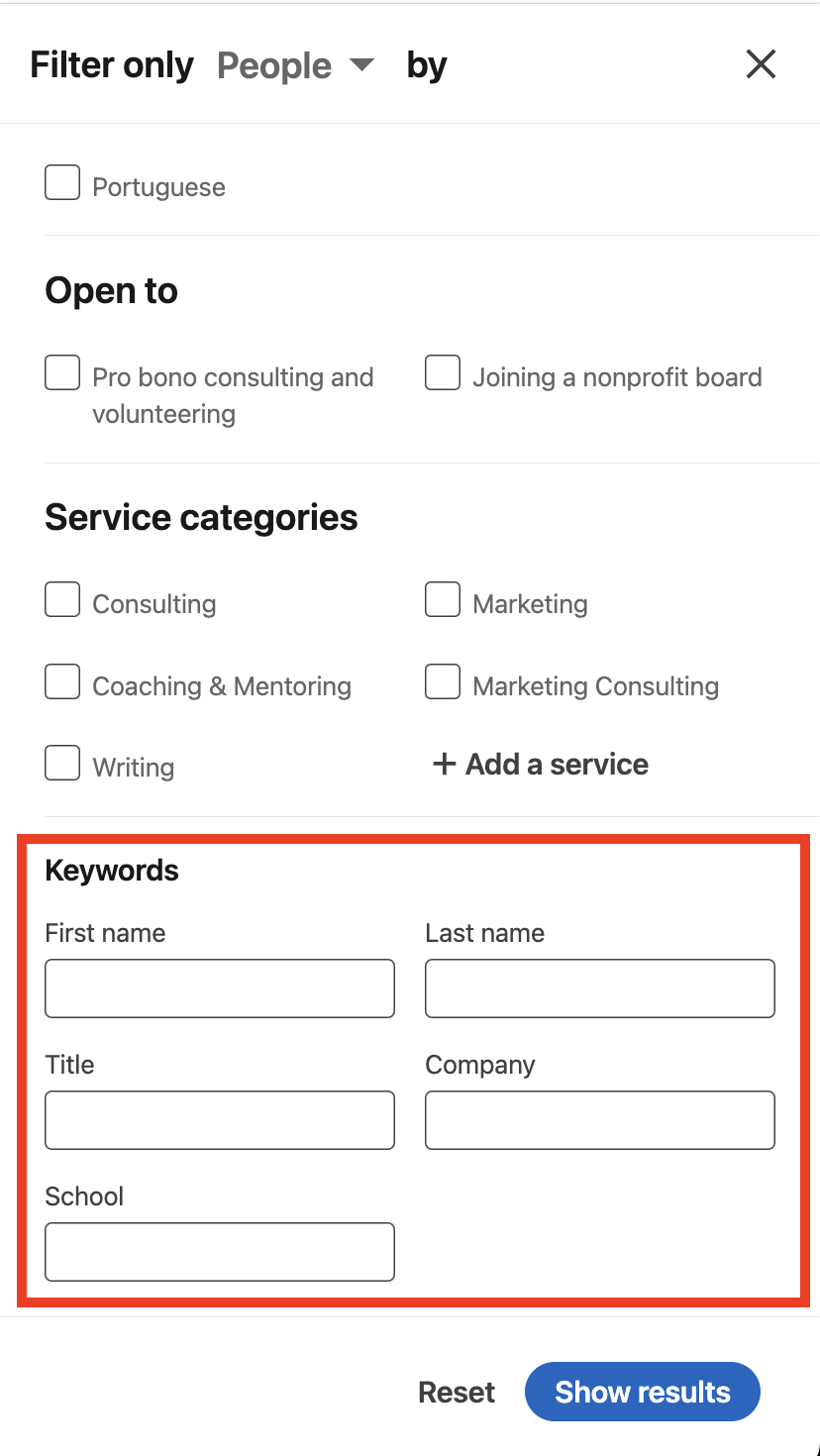
| Keywords | Use Boolean operators for precision (see Advanced section) |
💡 Tip: Combine Title + Location + Industry for the tightest targeting. The more specific your filters, the higher your reply rates.
Step 3: Review Your Results
Click Show results to see the filtered list.

Scroll through the results and confirm the audience looks right. LinkedIn shows up to 1,000 results per search — SalesMind AI can import up to 1,500 leads from a single URL.
👉 Note: LinkedIn's free search caps results at 1,000 profiles. If you need more, consider Sales Navigator.
Step 4: Import Into SalesMind AI
- Once you're happy with the results, copy the URL from your browser's address bar.
- Open SalesMind AI and navigate to your campaign's Prospecting List.
- Paste the URL into the LinkedIn search field.

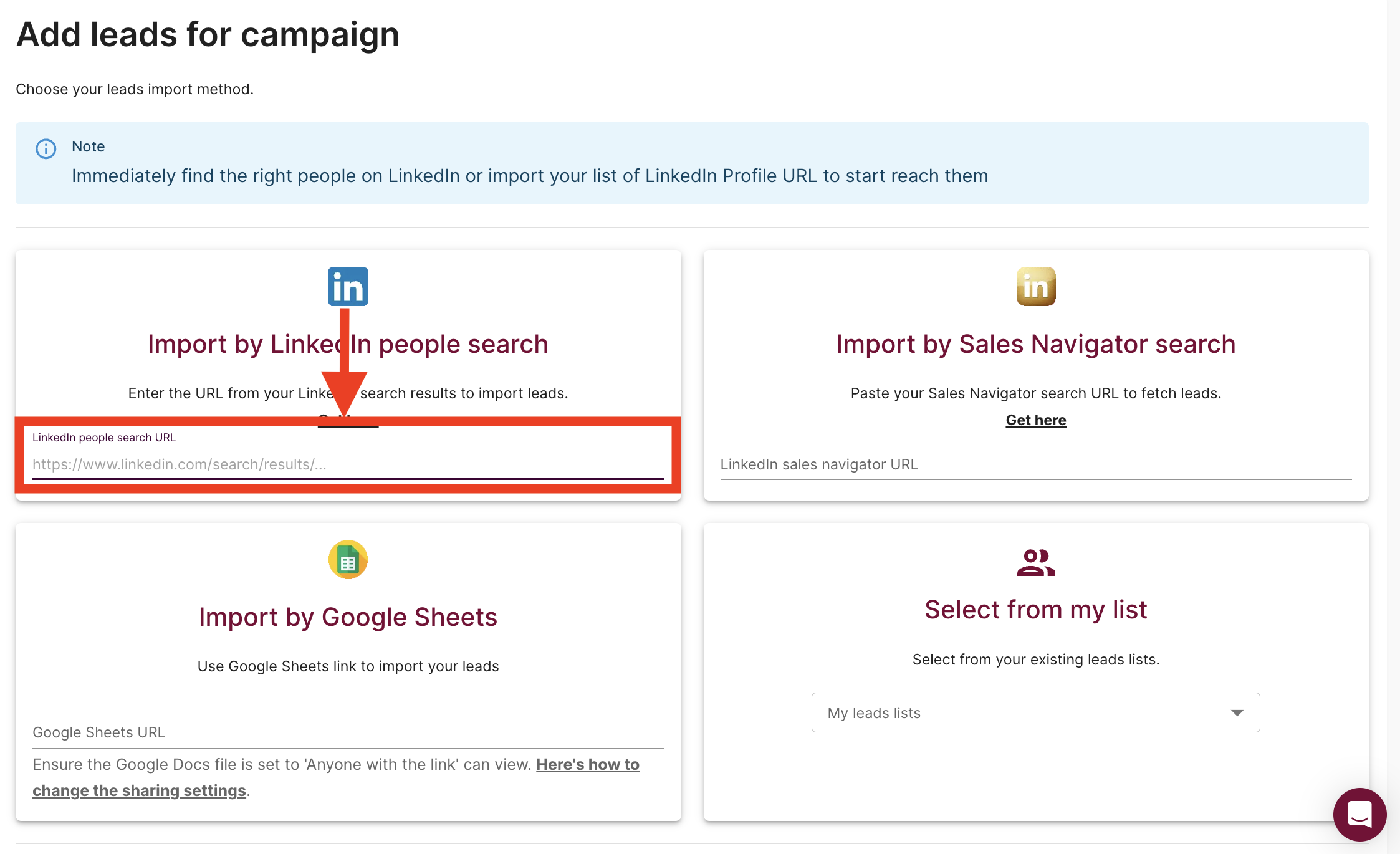
SalesMind AI will pull the profiles from that search and add them to your list automatically.
Advanced: Boolean Search
Boolean search lets you combine or exclude keywords for much more precise results. It works in the Title and Keywords fields.
| Operator | What it does | Example |
|---|---|---|
AND | Both terms must appear | ui designer AND ux designer |
OR | Either term can appear | "UI design" OR "UX design" |
NOT | Excludes a term | engineer NOT junior |
- | Same as NOT | "software engineer" -"quality assurance" |
" " | Exact phrase match | "product designer" |
( ) | Groups terms | customer (support OR service) |
* | Wildcard for variations | designer* |
💡 Tip: Use
"VP of Sales" OR "Head of Sales" OR "Sales Director"in the Title field to cast a wider net across seniority levels without losing relevance.
⚠️ Warning: Boolean search only works in specific fields — Title and Keywords. It won't work in Location or Company filters.
What's Next
- Get your LinkedIn connection list — import your existing 1st-degree connections as a prospecting source
- Exclude companies from your search — use Sales Navigator to filter out existing clients
- Set up your outreach sequence — once your list is ready, configure your campaign messages in SalesMind AI