
Prerequisites
- You have an active SalesMind AI account
- You have a LinkedIn account (free tier works; Sales Navigator is not required)
- You're inside an agent and ready to add leads
What Is People Search?
People Search lets you import leads directly from a standard LinkedIn search. Run your search on LinkedIn, copy the URL, and paste it into SalesMind AI. That's it.
Step 1: Run a LinkedIn People Search
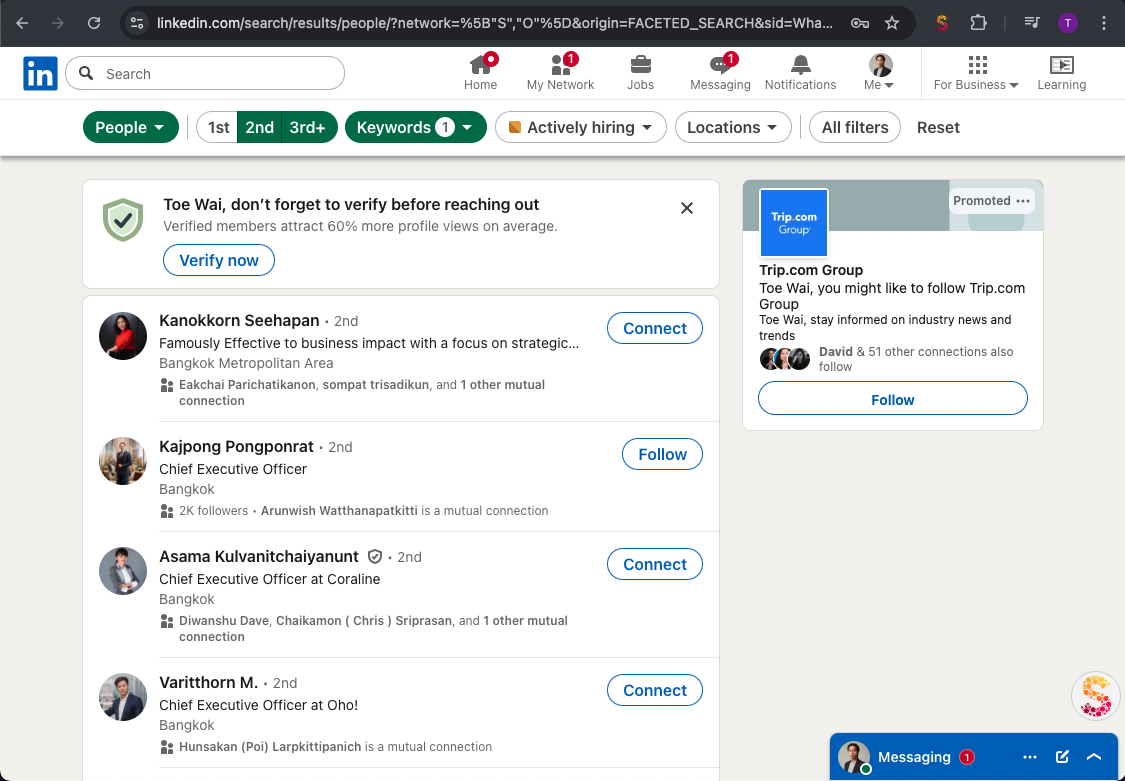
- Open LinkedIn and go to the People Search page
- Apply filters to narrow your audience:
- Network level — 2nd or 3rd degree connections
- Keywords — job titles like CEO, Founder, or Entrepreneur
- Location, company, industry, profile language, service category
👉 Note: SalesMind AI pre-populates an example search to guide you. You can edit it or reset and start fresh.
Step 2: Use Keywords and Logic Operators
In the LinkedIn keyword field, you can combine terms using logic operators:
| Operator | Example | Result |
|---|---|---|
OR | CEO OR Founder | Matches either title |
AND | CEO AND Entrepreneur | Must match both |
| Parentheses | (CEO OR Founder) AND SaaS | Groups logic like math |
⚠️ Warning: Operators must be in ALL CAPS. Lowercase
orandandwon't work as logic operators.
Step 3: Apply Additional Filters (Optional)
Refine your results further with:
- Actively hiring status
- Current company
- Follower count
- Industry or service category
💡 Tip: Leaving filters blank broadens your results. Use them intentionally to control list quality and size.
Step 4: Copy the URL and Paste It Into SalesMind AI
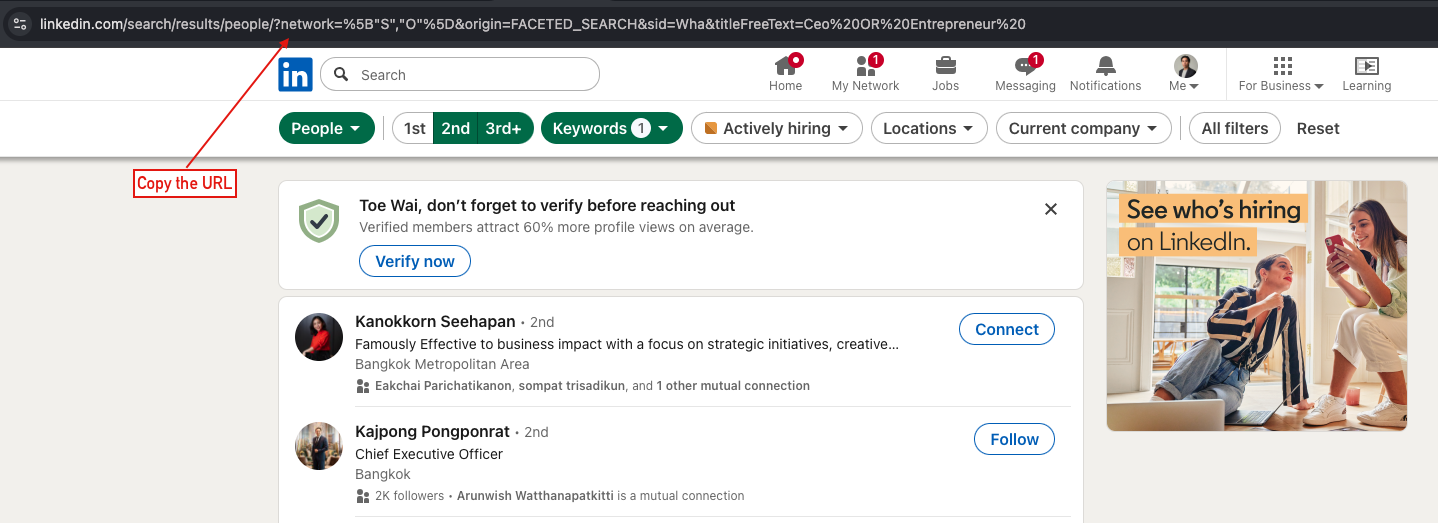
- Once your LinkedIn search is set up, copy the URL from your browser's address bar
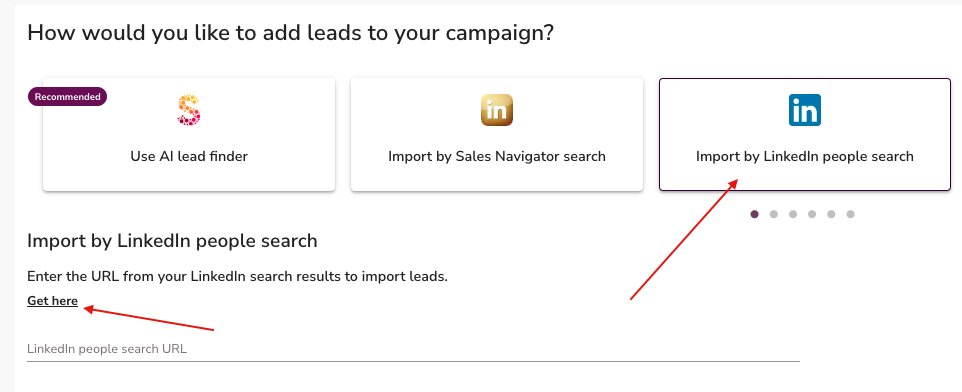
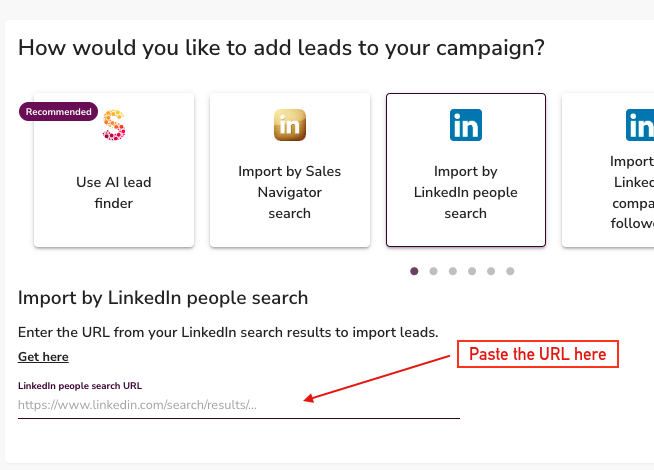
- Go to SalesMind AI and open the People Search import option
- Paste the URL into the field
- SalesMind AI processes the URL and imports the matching profiles into your campaign
What's Next
- Explore other import methods in the Import My Leads section
- Add your imported list to a campaign and configure your outreach sequence