
LinkedIn sometimes limits accounts to protect the platform. This can happen even with normal usage. When it does, SalesMind AI can't reconnect until LinkedIn lifts the restriction.
This guide explains the two types of limitations and walks you through the appeal process to get your account restored.
Two Types of LinkedIn Limitations
Restricted Account (Visible Notice)
LinkedIn tells you directly. You'll see messages like:
- "Your account is restricted."
- "Your account is temporarily suspended."
- "We're reviewing your activity."
A notice appears on screen when you try to use LinkedIn. Until LinkedIn removes the restriction, SalesMind AI cannot reconnect.
Shadow Ban (No Warning)
A shadow ban gives you no notice. Instead, you'll notice symptoms:
- LinkedIn won't load or stays on a blank page
- Your inbox doesn't open
- Messages spin indefinitely
- You can't send connection requests or follow accounts
- Your content suddenly gets almost no reach
👉 Note: Both types block SalesMind AI from reconnecting. The fix is the same for both: submit an appeal to LinkedIn.
How to Appeal: Step-by-Step
Step 1 — Open the LinkedIn Support Form
Go to: https://www.linkedin.com/help/linkedin/ask/sdsupport
This is LinkedIn's official form for account access and trust & safety issues.
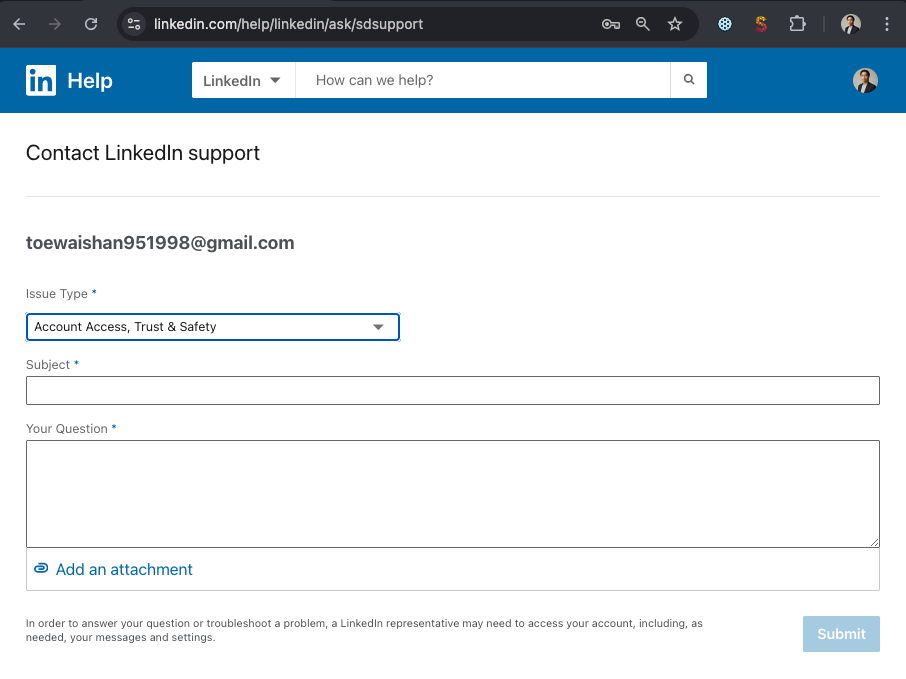
Step 2 — Submit Your Appeal
Fill in the form. Keep it polite, factual, and brief. Explain that:
- You own the account
- You use LinkedIn for professional networking
- You'd like the account reviewed and reactivated
⚠️ Warning: Don't mention automation tools in your appeal. Keep the focus on professional networking and account access.
Ready-to-use templates:
Option 1 — Trouble logging in
Subject: Trouble Accessing My LinkedIn Account
Hello LinkedIn Support,
I'm having trouble logging into my account. It seems stuck or only partially loading, and I cannot access my messages or main feed.
I use LinkedIn daily for professional networking, so I kindly ask for a review to restore normal access.
Thank you for your help.
Option 2 — Account stuck on loading page
Subject: My LinkedIn Account Is Not Loading Properly
Hello LinkedIn Support,
My account is not loading correctly. Pages stay blank or keep spinning, and I can't access my inbox or dashboard.
I rely on LinkedIn for business communication, so I would appreciate your help in reviewing and fixing this issue.
Thank you in advance.
Option 3 — Business impact
Subject: Urgent Request: Please Review My Account
Hello LinkedIn Support Team,
I'm unable to access my account properly, and this is slowing down my communication with clients and prospects.
I always follow LinkedIn's rules, and I believe this issue may be a misunderstanding. Could you please review my account and restore full access?
Thank you for your help.
Step 3 — Wait for LinkedIn's Response
You'll receive an email confirmation. LinkedIn typically responds within 3–5 business days.
Once your account is restored, log back into LinkedIn, open SalesMind AI, and click Connect to reconnect.
After LinkedIn Restores Your Account
- SalesMind AI reconnects automatically within about a minute
- All campaigns resume immediately
- Scheduled messages continue as normal
- No data, leads, or sequences are lost
What's Next
- Account restored but still showing disconnected in SalesMind AI? See the My Account Has Been Disconnected article
- Campaigns not running after reconnecting? See the Why Is My Campaign Not Running? article