
Overview
Today's buyers do most of their research before they ever talk to a salesperson. Sales Navigator's Buyer Intent and Category Intent signals let you see that research happening in real time — so you can reach out when interest is highest, not after it's cooled.
This guide shows you where to find intent data in Account Hub and how to act on it.
Prerequisites
- Saved accounts in at least one Account List
- Sales Navigator Advanced or Advanced Plus (required for intent data)
Where to Find Buyer Intent
- Click Accounts in the top navigation bar
- Open Account Hub
- Select the list you want to review from the top-left dropdown
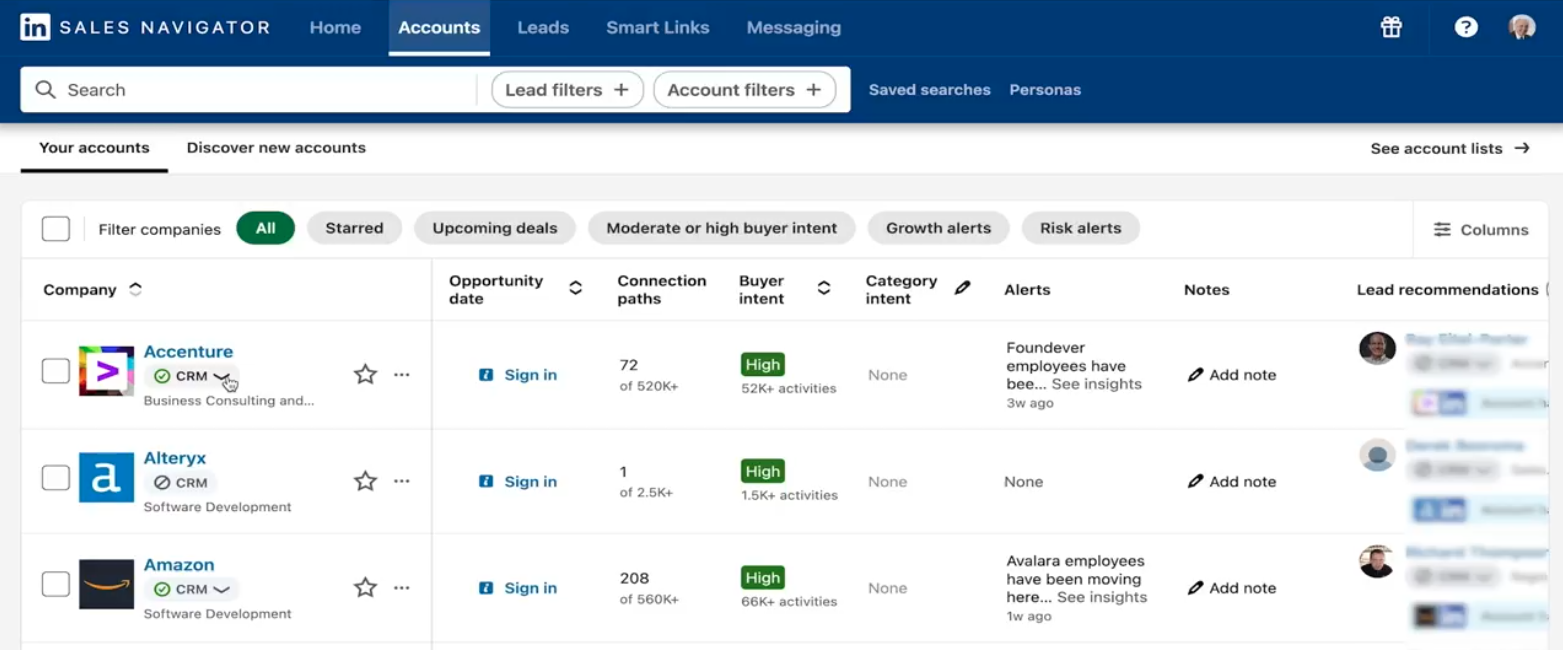
- In the table view, look for these columns:
- Buyer Intent
- Category Intent
- Growth Alerts
- Risk Alerts
- Recommended Leads
Understanding Buyer Intent
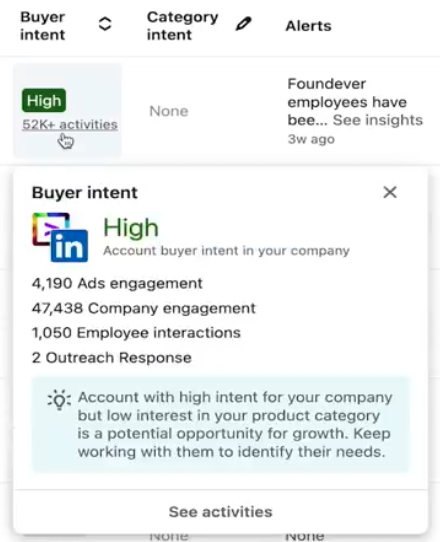
Buyer Intent measures how much interest a company's employees are showing in your specific company based on their LinkedIn activity. Signals include:
- Viewing your company's LinkedIn Page
- Engaging with your content or ads
- Searching for your company or related topics
How to act on each level:
| Intent Level | What It Means | What to Do |
|---|---|---|
| High | Actively researching your company | Prioritize immediately — reach out now |
| Medium | Showing some interest | Nurture with relevant content or a light-touch message |
| Low | Minimal activity | Keep in pipeline, don't invest heavy effort yet |
Understanding Category Intent
Category Intent goes broader. It shows interest in your market or solution type — not just your company. This helps you catch early-stage buyers before they start comparing specific vendors.
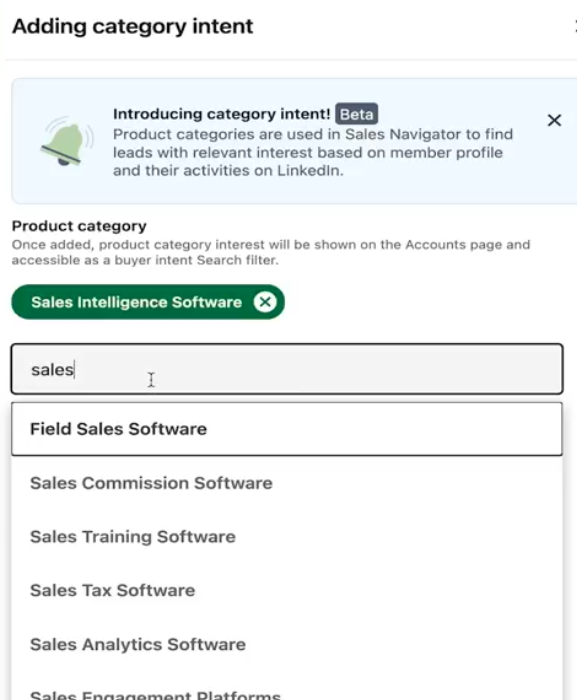
Setting up Category Intent:
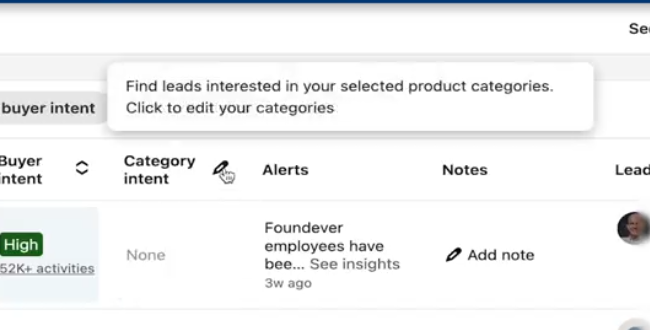
- Click the pencil icon at the top of your Account Hub table
- Add up to 10 product categories relevant to your business
- Monitor which accounts show consistent engagement with those categories
💡 Tip: Category Intent is your early-warning system. An account showing high category interest but low buyer intent is a warm prospect — they're in the market, just not yet aware of you.
Prioritizing Your Outreach
Use intent data to sort your Account Hub before each prospecting session:
- Filter for High Buyer Intent accounts first
- Check their Recommended Leads to find the right contacts
- Review their Account Page for context before reaching out
- Use SalesMind AI to generate a personalized message referencing their recent activity
⚠️ Warning: Intent signals are time-sensitive. A high-intent account this week may cool off next week. Act on strong signals quickly.
What's Next
- Research accounts deeply — use Account Pages to understand context before outreach
- Build your buying committee — use Relationship Explorer to find all the right contacts
- Launch outreach — bring your prioritized accounts into SalesMind AI