
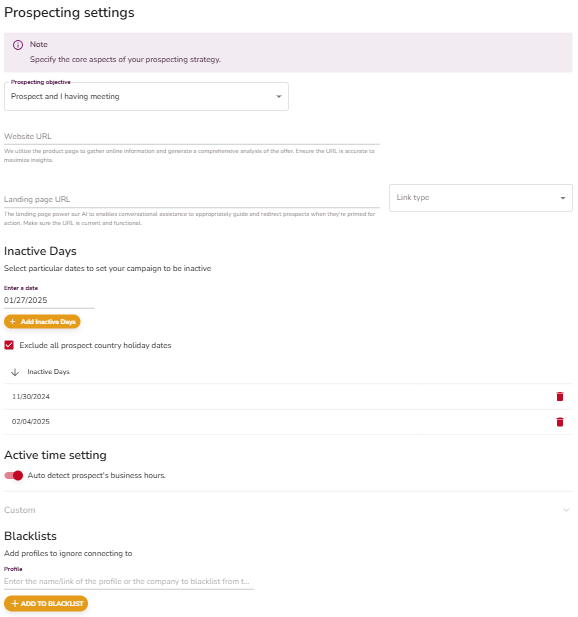
Advanced Settings give you precise control over when and who your campaigns reach. This article covers Inactive Days, Active Time Settings, Blacklists, and Attach Settings.
How Settings Levels Work
Think of it like a pizza shop:
- Agent Settings are the default recipe every chef follows. New senders inherit these automatically.
- Sender Settings are a chef's personal tweaks. They apply to that sender's campaigns.
- Campaign Settings are the customer's final order. They override everything else.
👉 Note: Agent and Sender settings are starting points. Campaign Settings are the only ones that actually control outreach.
The Three Levels
| Level | What it does |
|---|---|
| Agent | Default config applied to new senders and existing campaigns when attached |
| Sender | Per-sender config, applied when that sender is used in a campaign |
| Campaign | The active config that controls actual outreach. Always takes priority. |
Where to Access Advanced Settings
- From a Campaign: Campaign Creation → Prospect → Advanced Settings
- From an Agent: Agent → Settings
- From a Sender: Agent → Sender Settings → Outreach Settings
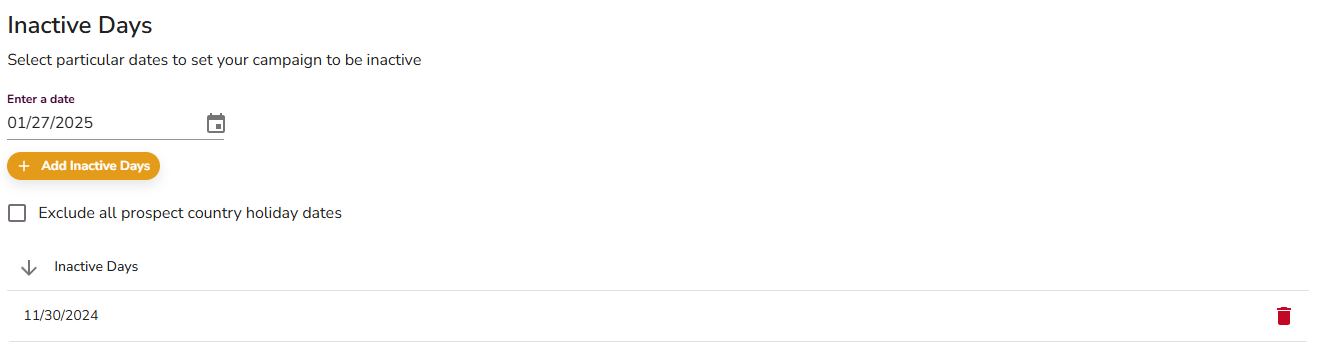
Inactive Days
Inactive Days prevents outreach on non-business days and holidays, keeping your campaigns professional and well-timed.
What it does
- Automatically detects national holidays based on the prospect's country and pauses outreach.
- Lets you add custom dates like company-wide off days or weekends.
How to configure
- Open Advanced Settings.
- Go to the Inactive Days section.
- Select dates to mark as inactive.
- Enable prospect country holiday exclusions or add custom dates.
- Save.
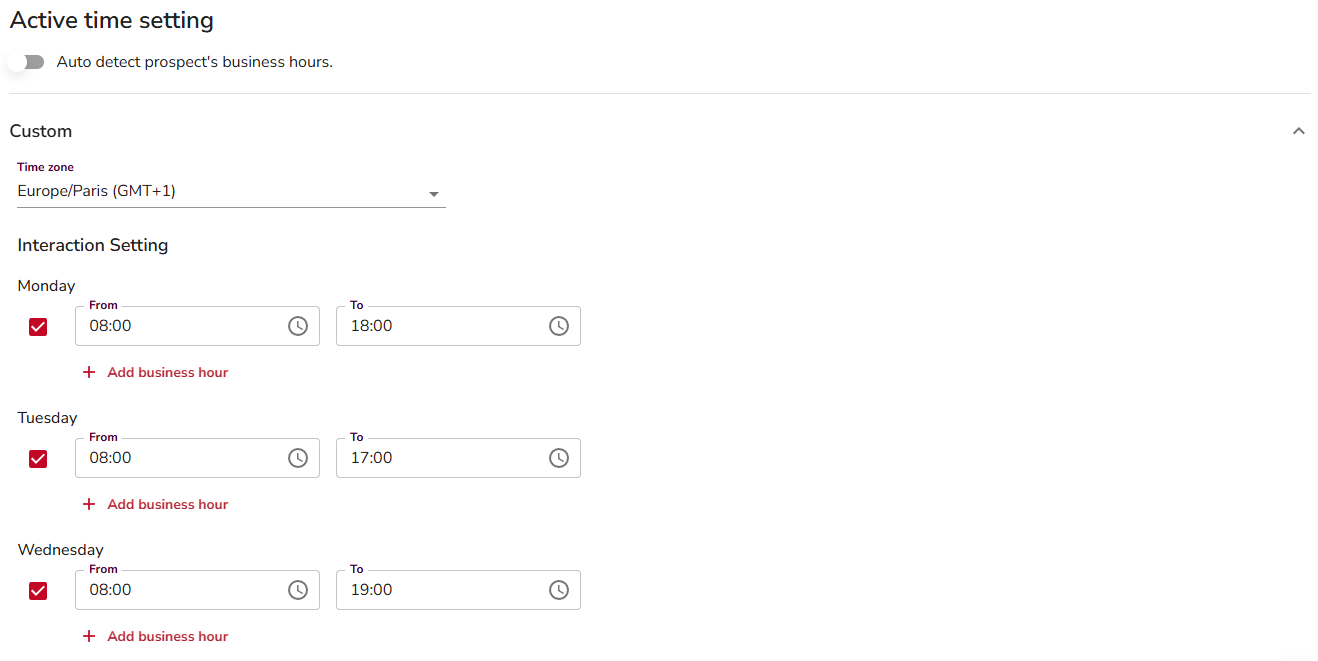
Active Time Settings
Active Time Settings controls the hours your campaign sends messages, so outreach lands when prospects are actually at their desks.
What it does
- AI Detection: Automatically aligns with prospects' local business hours.
- Manual Configuration: Set specific active hours based on your audience or timezone.
How to configure
- Open Advanced Settings.
- Go to the Active Time Settings section.
- Choose AI Detection to auto-detect business hours, or set hours manually.
- Save.
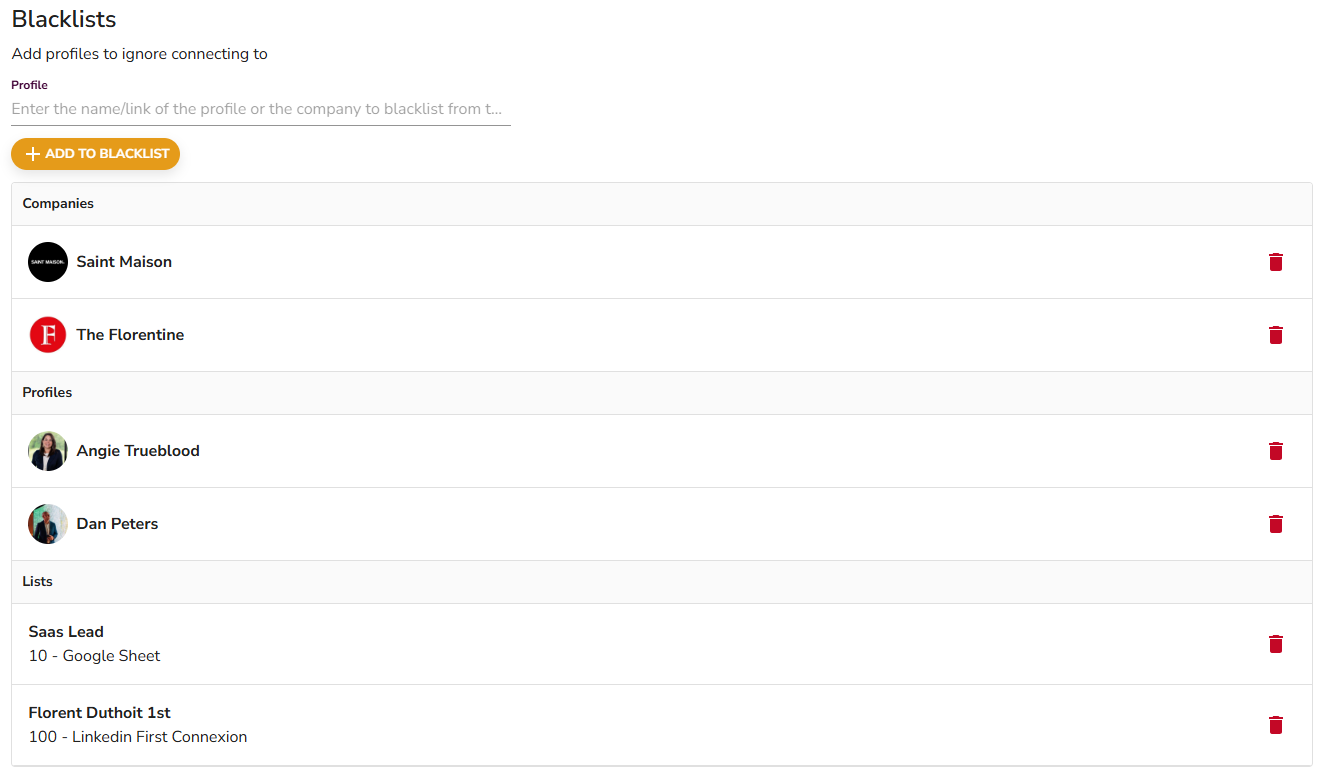
Blacklists
Blacklists let you exclude specific companies, profiles, or lead lists from your outreach so you only reach the right people.
What it does
- Exclude Companies: Block all profiles from a specific company.
- Exclude Profiles: Block individual LinkedIn profiles.
- Exclude Lead Lists: Block entire lists from being contacted.
How to configure
- Open Advanced Settings.
- Go to the Black Lists section.
- Add exclusions by specifying companies, profiles, or lead lists.
- Save.
⚠️ Warning: Blacklist entries only take effect when applied at the campaign level. Entries set at Agent or Sender level won't stop outreach unless they're also in the campaign's settings.
Attach Settings
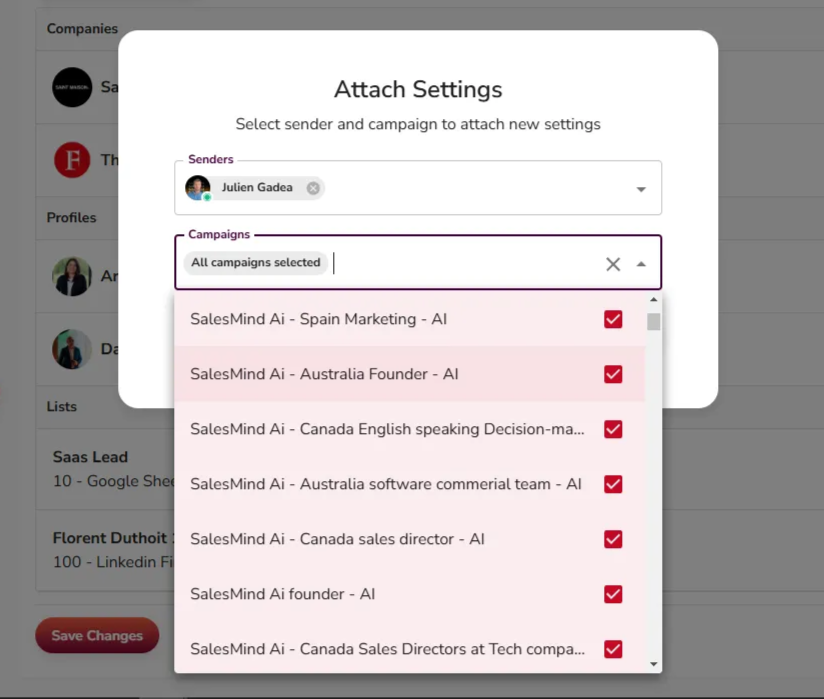
Attach Settings lets you apply a saved configuration to multiple campaigns at once, saving setup time and keeping things consistent.
👉 Note: This step is optional. You can skip it if you're configuring each campaign individually.
What it does
- Apply Blacklists, Active Times, or Inactive Days to multiple campaigns or senders in one action.
- Quickly push predefined settings to new campaigns.
How to configure
- Open Advanced Settings.
- Save changes in any feature (Blacklists, Inactive Days, or Active Time Settings).
- When prompted, select the campaigns or senders to receive the settings.
- Save.
What's Next
- Set up Outreach Settings for blacklists and timing at the campaign level
- Review your Campaign Creation settings to confirm Advanced Settings are applied