
What the Sales Navigator Mobile App Does
The Sales Navigator mobile app gives you access to your leads, alerts, messages, and content-sharing tools from your phone. Whether you're between meetings, traveling, or away from your desk, you can keep your pipeline moving without opening a laptop.
Prerequisites
- An active Sales Navigator account (Core, Advanced, or Advanced Plus)
- iOS or Android device
Step 1: Download and Log In
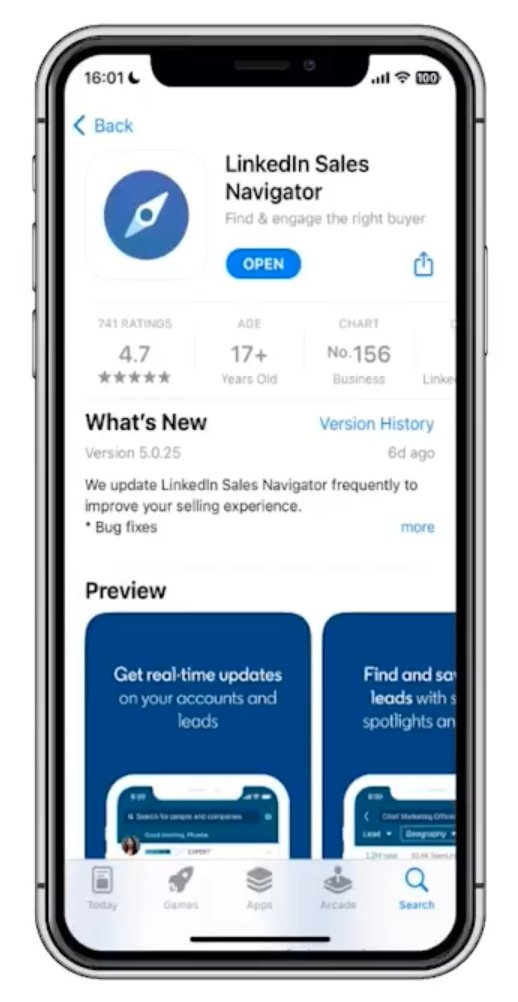
- iOS: Search "Sales Navigator" in the Apple App Store and install.
- Android: Search "Sales Navigator" in the Google Play Store and install.
⚠️ Warning: Make sure you download the Sales Navigator app specifically — not the standard LinkedIn app. They're separate.
- Open the app and sign in with your LinkedIn Sales Navigator credentials.
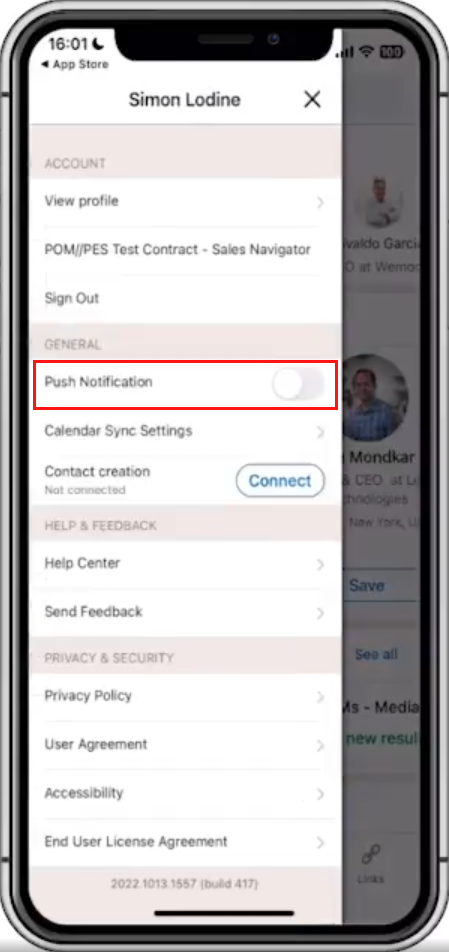
- When prompted, allow notifications to receive real-time lead and account alerts.
Key Features
1. Lead and Account Alerts
The app notifies you about activity that matters:
- Lead updates: Career changes, new posts, job-related activity
- Account updates: Company news, growth signals, acquisitions, layoffs
Customize which alerts you receive in the app's notification settings to cut noise and focus on what's relevant.

2. View and Engage with Leads
From the app you can:
- Browse your saved lead and account lists
- Open Lead Pages to review recent activity and profile details
- Send direct messages or follow up on existing conversations


3. Messaging and InMail
Send InMail and direct messages to leads without switching to a desktop. Use Message Assist to draft or personalize messages on the go.
Drafts sync across devices — start a message on desktop and finish it on your phone, or vice versa.


💡 Tip: If you get a lead alert while commuting, open the app, check their recent activity, and send a timely, relevant message before you reach your destination.
4. Smart Links
Share content — case studies, decks, whitepapers — directly from the app using Smart Links. After sharing, you can track who viewed your content and how long they engaged with each section.


👉 Note: Smart Link engagement data syncs in real time. Check it after sharing to know when to follow up.
What's Next
- [Engaging and Sharing Content with Buyers] — Learn how to use Smart Links and InMail effectively, whether on desktop or mobile.
- [Understanding Lead Pages] — Get the most out of lead research before you reach out.