
The Google Sheets method lets you import a curated list of LinkedIn profile URLs directly into SalesMind AI. If you already have a list of prospects — from a CRM export, a research spreadsheet, or a manual list — this is the fastest way to get them into a campaign.
Prerequisites
- An active SalesMind AI campaign in progress
- A Google Sheet containing LinkedIn profile URLs
- The sheet must be set to "Anyone with the link can view"
Steps
1. Prepare your Google Sheet
Create a Google Sheet with at least one column of LinkedIn profile URLs. Each URL must follow this format:
https://www.linkedin.com/in/username
⚠️ Warning: Row 1 is always skipped. SalesMind AI treats it as a header row. Put your first profile URL in row 2 or below.
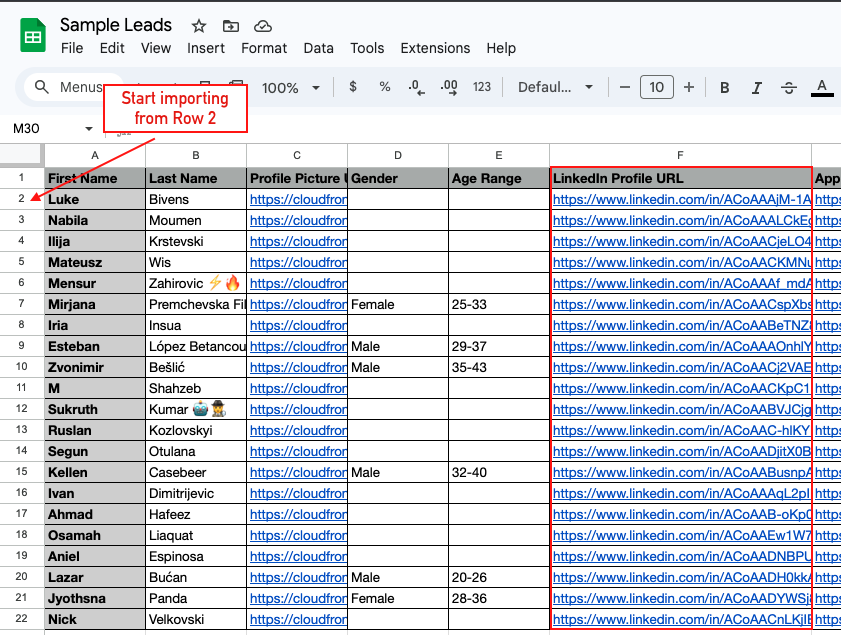
👉 Note: Only LinkedIn profile URLs are imported. Any other columns (names, emails, notes) are ignored entirely.
2. Set sharing to public
Open the sheet's sharing settings and change access to "Anyone with the link can view". Copy the shareable link.
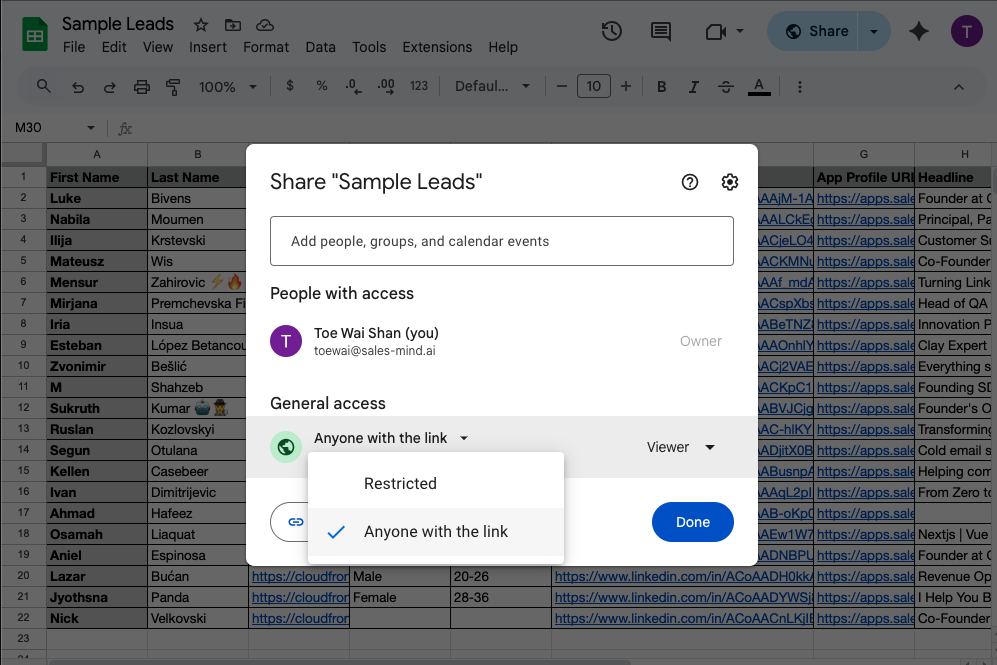
⚠️ Warning: If the sheet is private or restricted, SalesMind AI can't access it and the import will fail.
3. Paste the link into SalesMind AI
In your campaign's Import Leads step, select Google Sheet Import. Paste the sheet link into the input field.
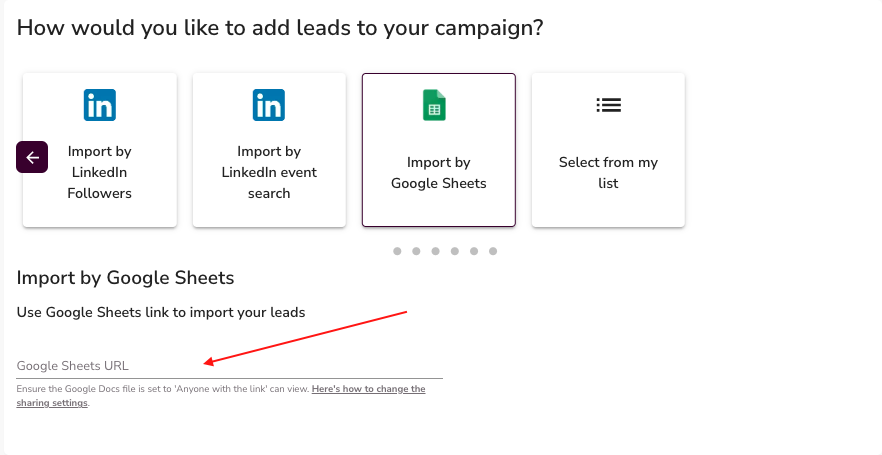
SalesMind AI scans the sheet and imports every valid LinkedIn profile URL it finds, starting from row 2.
Quick checklist
| Requirement | Details |
|---|---|
| URL format | Must start with https://www.linkedin.com/in/ |
| Row 1 | Must be a header or blank — never a profile URL |
| Sheet access | Set to "Anyone with the link can view" |
| Other columns | Ignored — only LinkedIn URLs are read |
What's Next
- Add more leads using other import methods (Sales Navigator, Event Search, Profile Followers)
- Review your imported list to confirm the count looks right before launching
- Set up your message sequence and start your campaign